
AI search is a conversational tool that finds financial assets based on a natural-language description of an investment strategy.
Disclaimer: AI search is a search and filtering tool. The results it returns do not constitute investment advice or recommendations. All investment decisions remain the sole responsibility of the user.
Instead of setting filters manually, the user describes the goal in a free-form query, and the system interprets it, applies the relevant filters, and returns a list of matching assets. For each result, AI search displays which filters were applied and how the query was interpreted.
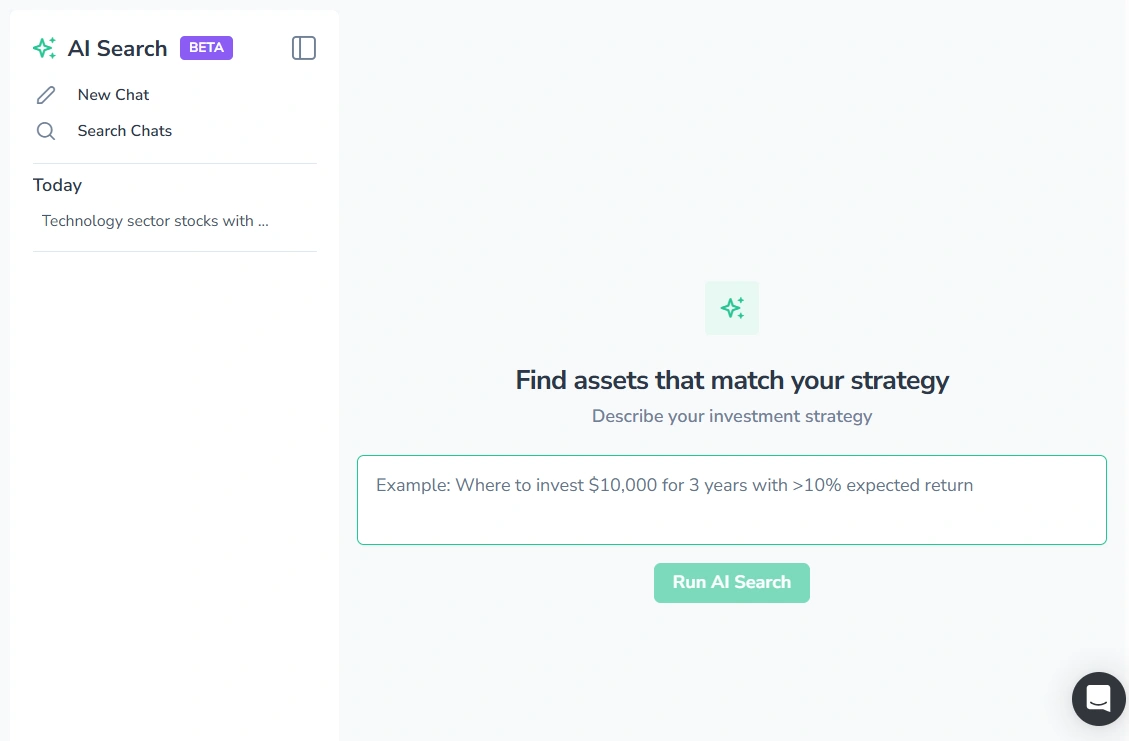
Note: AI search is currently available in Beta. Features and behavior may change in future updates.
How to Use AI Search
- Enter a description of your investment strategy in the text field (e.g., where to invest $10,000 for 3 years with >10% expected return).
- Press “Run AI Search”. The AI returns a preliminary list of assets and an interpretation of the query.
- To refine the results, enter a follow-up message and press “Send Message”.
- Once the results are ready, press “Generate Results”. The results table appears in the right panel.
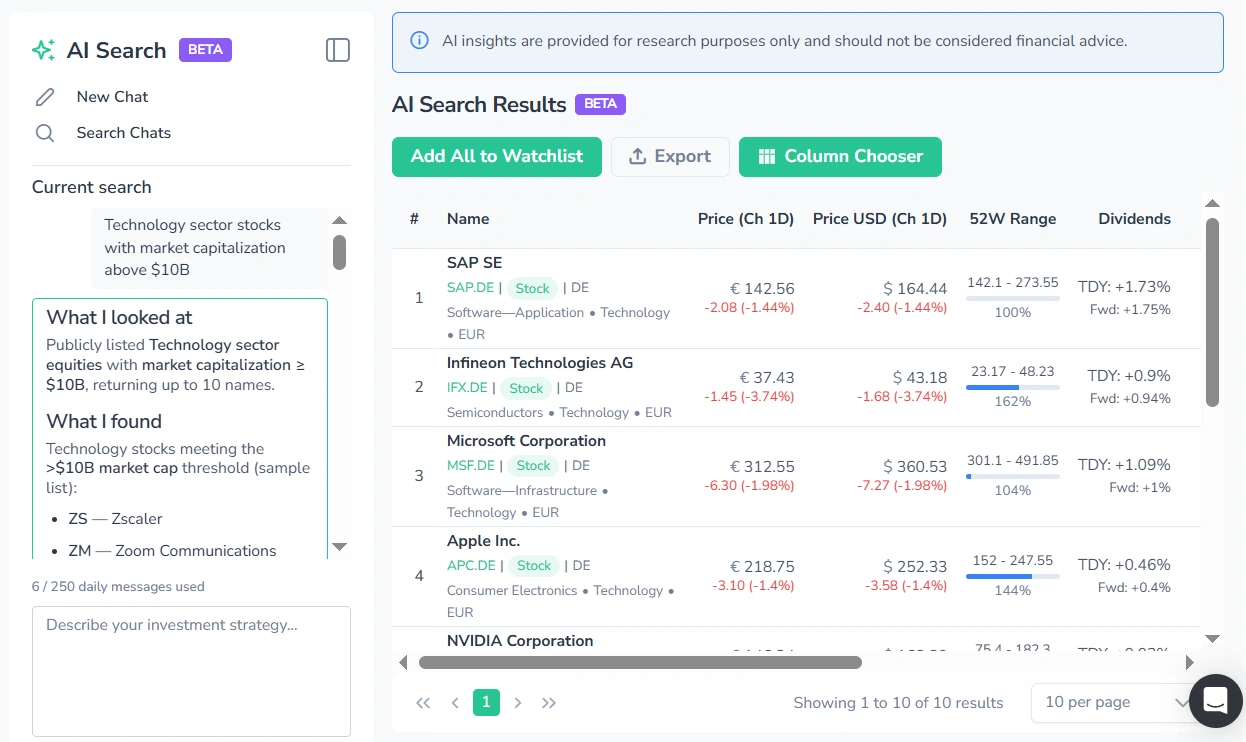
Chats Panel
The left panel serves as both the active chat interface and the list of saved chats. It also allows the user to:
- Start a new chat by pressing “New Chat”.
- Search through saved chats using the “Search Chats” field.
- Browse the chat history.
- Rename or delete a chat (hover over a chat → press the three-dot icon → select the required option).
AI Search Results Table
The AI search results table supports the same sorting, column customization, pagination, and export features as the standard search results table (see Search Results Manual).
Additionally, the entire result set can be added to a Watchlist in one click using the “Add All to Watchlist” button (see Watchlists Manual).
To expand the results table view, the left panel can be collapsed by pressing the icon in its top-right corner.