
Sign Up and Log In
To start using FinImpulse, sign up with your email or Google account.
Steps to Sign Up with Email
- Go to app.finimpulse.com.
- Click ”Sign Up”.
- Enter your name, surname, email address, and password.
- Agree to the Terms of Service and Privacy Policy
- Choose ”Create Account”.
- Verify your email.
- Complete the onboarding.
- If you intend to use the dashboard, select and activate a plan.
- Sign-up is complete.
Steps to Sign Up with a Google Account
- Go to app.finimpulse.com.
- Click ”Sign Up with Google”.
- Complete the steps required by Google.
- Complete the onboarding.
- If you intend to use the dashboard, select and activate a plan.
- Sign-up is complete.
If you registered using a Google account, FinImpulse sends a temporary password to your email address. Change this password in the profile settings.
See the Profile Setup Guide.
Steps to Log In to an Existing Account
- Go to app.finimpulse.com.
- Enter your email and password, or press “Sign In with Google”.
- To reset a forgotten password, press “Forgot password?” and follow the instructions sent to your email.
Your login session stays active for a security-approved time unless you manually sign out.
Dashboard
After signing in, the main dashboard is displayed. There are six main areas:
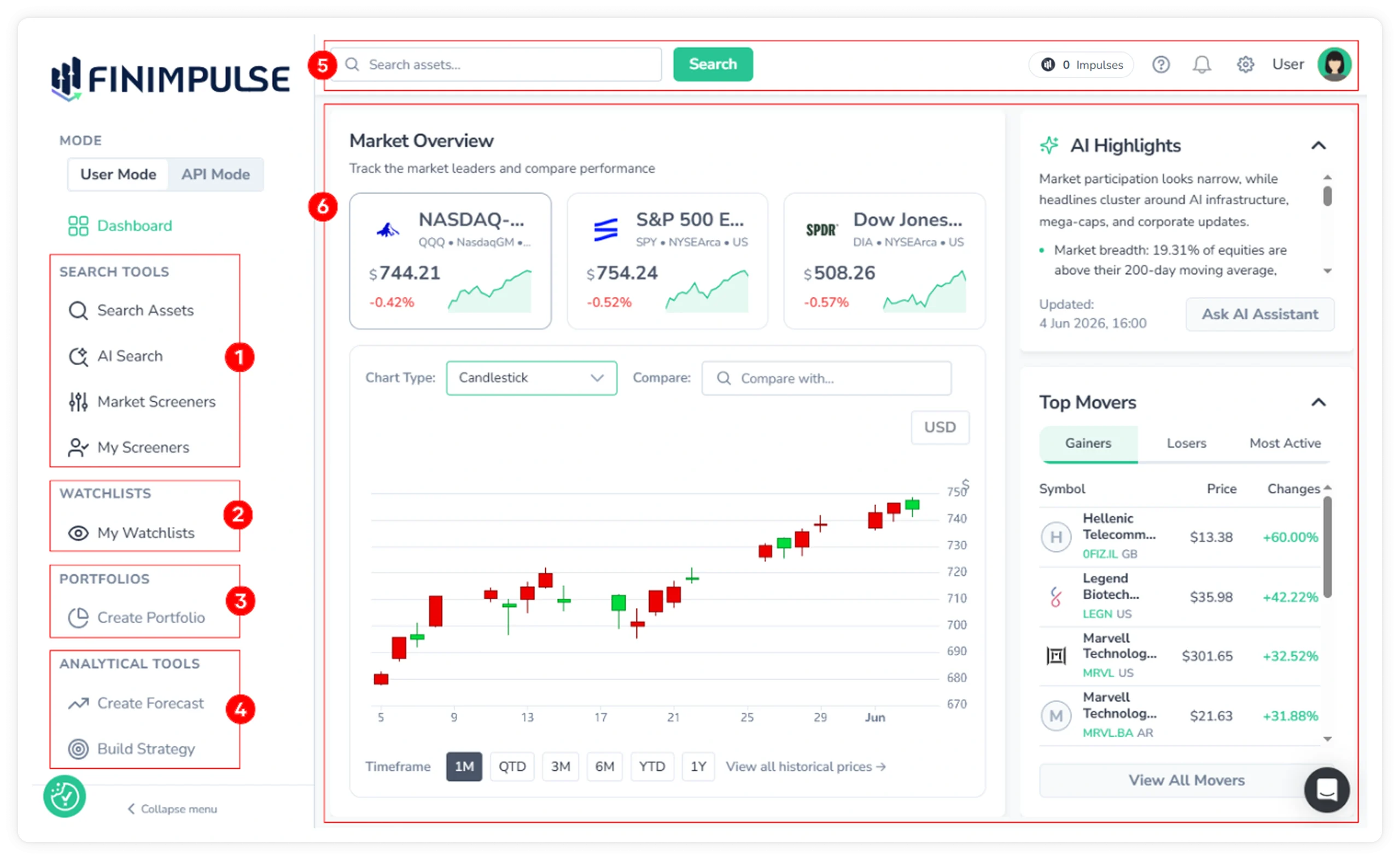
- Search Tools: Search Assets, AI Search, Market Screeners, My Screeners
- Watchlists: Save and track selected assets
- Portfolios: Create and manage your investment portfolios (Coming soon)
- Analytical Tools: Forecast builder and strategy builder (Coming soon)
- Top Bar: Global search, Impulses balance, support, notifications, preferences, and user menu
- Main Feed: Market Overview with index ETF charts, AI Highlights, and Top Movers (Gainers, Losers, Most Active)
All features are accessible via the left-side menu. The panel can be collapsed using the “Collapse menu” button.
For a detailed overview of all features, refer to the Key Features Guide.
User Menu
Press the profile picture in the top-right corner to open the user menu.
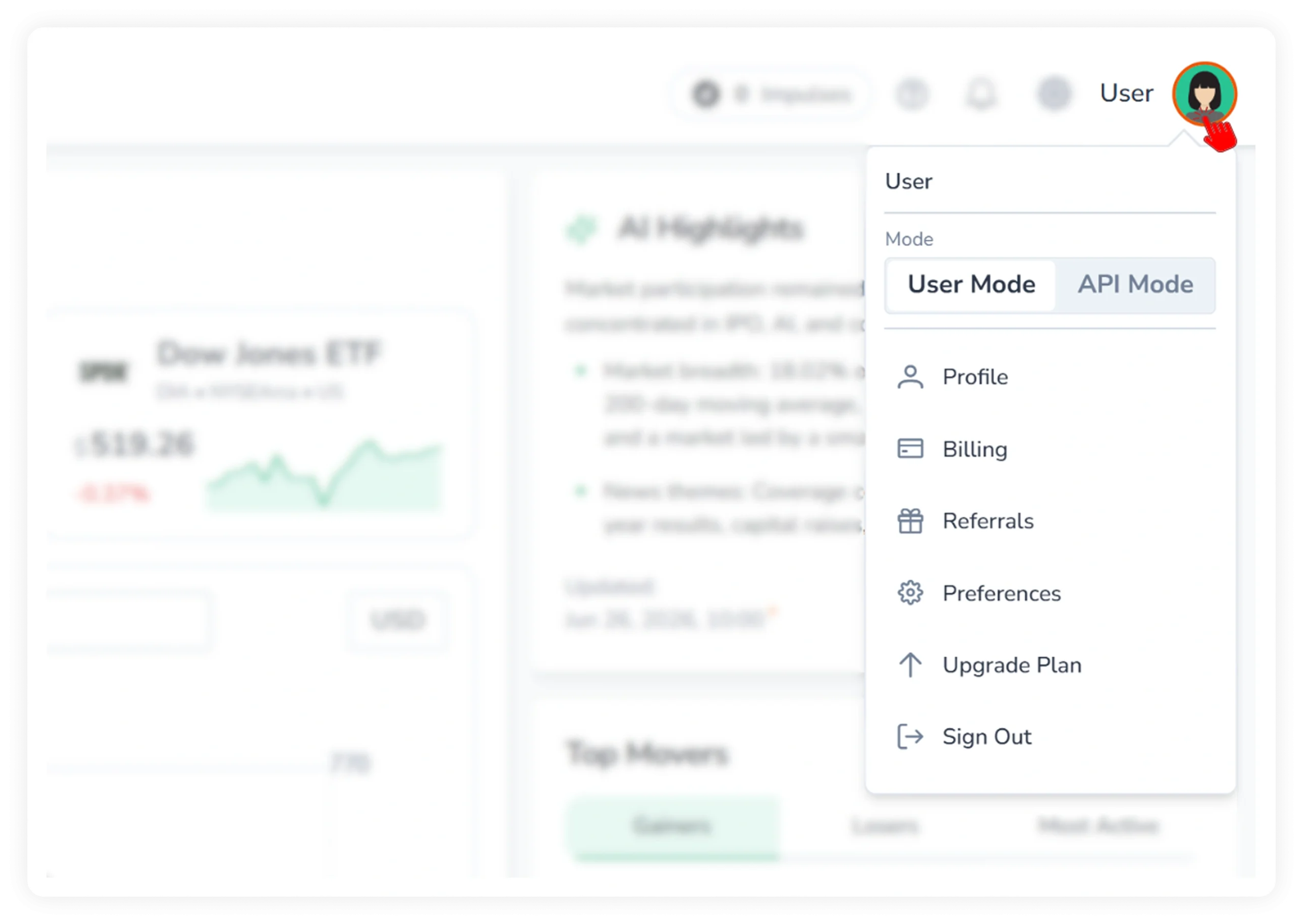
The user menu provides access to:
- Dashboard mode switcher
- Profile, billing, referrals, and preferences settings
- Plan upgrade
- Sign out
To set and manage your account correctly, please review the following manuals: