
The Tickers tab contains congressional disclosure data organized by asset. It includes two sections:
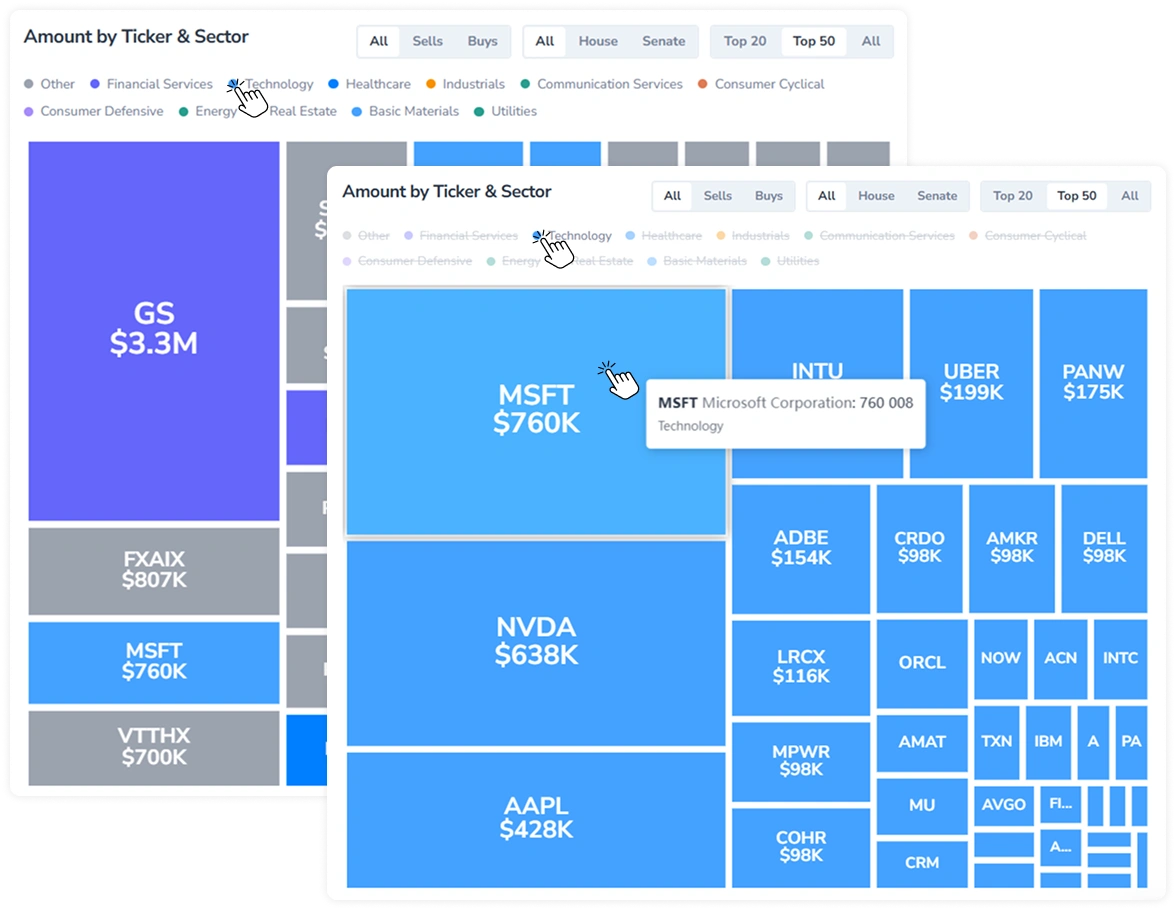
- Amount by Ticker & Sector: Disclosed volume by asset displayed as a treemap.
- Aggregated Tickers: A table of assets with aggregate disclosure data, expandable to show individual filings per ticker.
1. Amount by Ticker & Sector Section Controls
The Amount by Ticker & Sector view can be filtered using three toggles:
- Transaction type: Filter by All, Sells, or Buys to display total disclosed volume, sell-side only, or buy-side only.
- Chamber: Filter by All, House, or Senate to display disclosures from all members, House members only, or Senate members only.
- Ticker count: Limit the number of tickers displayed in the treemap to the Top 20, Top 50, or All.
The treemap supports the following interactions:
- Hover over a tile to display the full asset name, disclosed volume, and sector classification.
- Press a sector name in the legend to isolate tickers belonging to that sector. Press again to restore the full view.
- Press a ticker tile to navigate to the corresponding ticker page.
2. Aggregated Tickers Table Controls
The Aggregated Tickers table supports the following filters:
- Politician name: Search by politician name.
- Ticker: Search by ticker symbol or asset name.
- Sorting: Switch between Volume, Trades, and Politicians to sort the table by the corresponding metric.
- Date range: Set a custom date range via the date picker.
To reset all active filters at once, press Clear Filter.
Each row in the table represents a single asset. Press a row to navigate to the corresponding ticker page.
To view individual filings behind a ticker (politician, party, chamber, owner, amount range, and transaction type), press the arrow on the left side of the row.
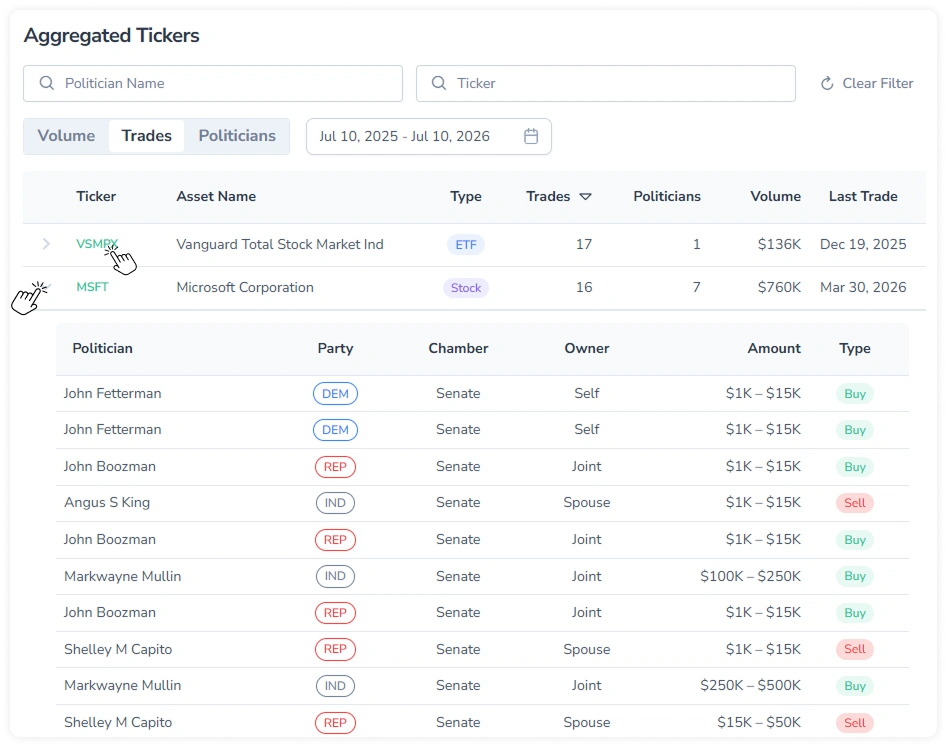
Expanded rows use color coding consistent across the Officials Disclosures module:
- Party: REP (Republican) in red, DEM (Democrat) in blue, IND (Independent/Not specified) in grey.
- Type: Buy entries are displayed in green, Sell entries in red.
The table also supports standard column sorting (see the Sorting Guide) and pagination.