
FinImpulse offers an advanced, multi-layered search and filtering system that enables users to explore, screen, and analyze over 600,000 global assets.
There are two standard ways to search:
- Top search bar — available throughout the dashboard. Returns exact and partial matches.
- Search criteria bar — provides quick access to the most commonly used filters and advanced filters. Detailed descriptions are provided in the sections below.
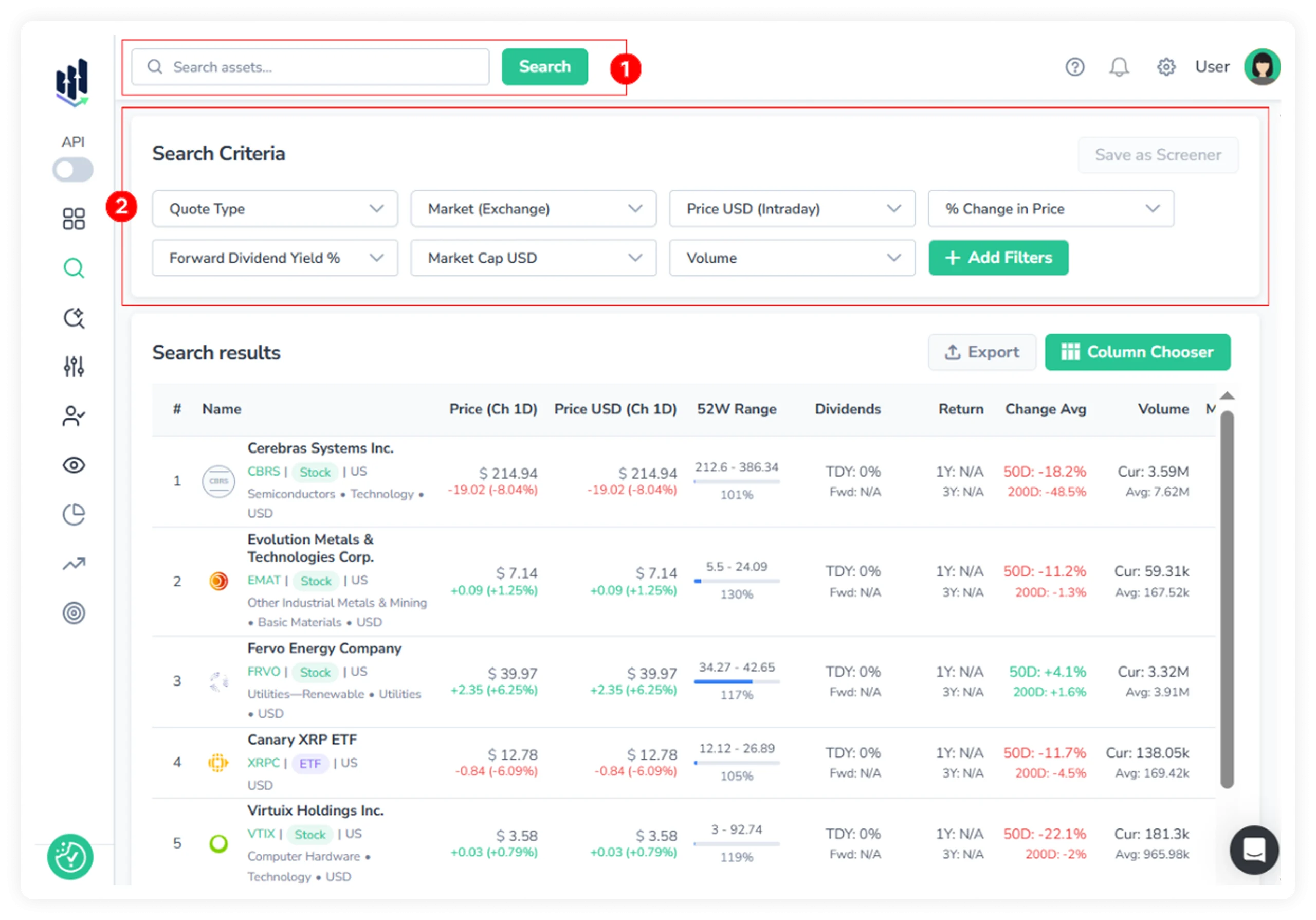
You can combine both — run a search via the top search bar and then refine results using filters in the search criteria bar.
FinImpulse also provides an AI-assisted search, which allows querying assets in natural language.
1. Top Search Bar
The top search bar allows searching by company name, fund name, or ticker symbol.
It is possible to use it in two ways:
- Search: Pressing Enter or the Search button displays matching results in the search results table.
- Autocomplete: As characters are entered, a dropdown displays matching suggestions. Selecting a suggestion navigates directly to the corresponding ticker page.
2. Filter Library
The search criteria bar displays 7 basic filters visible by default. To access the full filter library, press “Add Filters”.
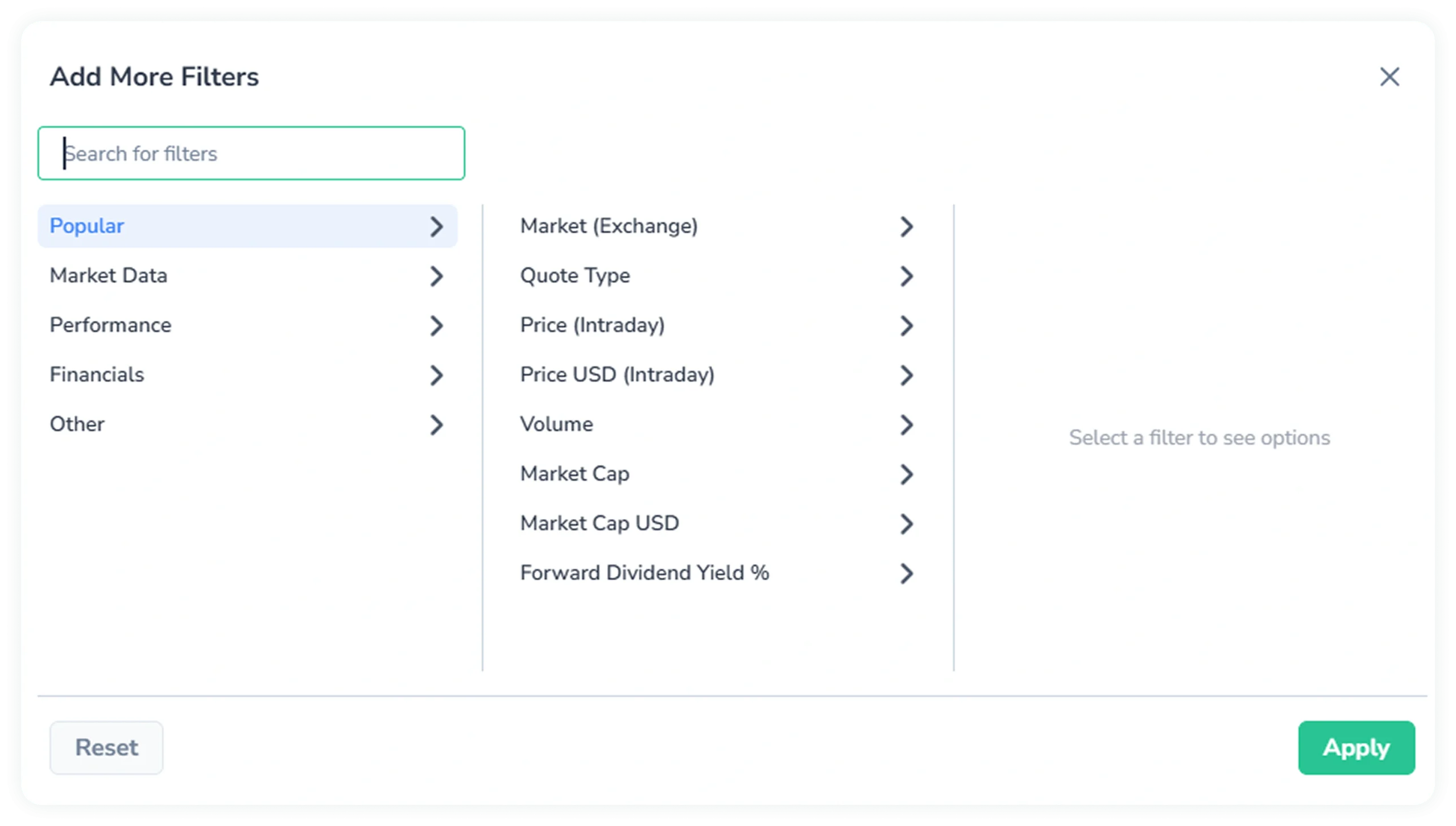
The dialog contains all available filters, including the basic, organized into 5 categories:
- Popular: Frequently used filters.
- Market Data: Asset identification, market classification, and core trading metrics.
- Performance: Price trends, return, and dividend metrics.
- Financials: Filters for screening assets by financial data availability and founding year.
- Other: Technical and system-level filters.
To quickly find a specific filter, use the search bar in the top-left of the dialog.
2.1. Filter Types and Behaviors
FinImpulse supports several filter logic types to accommodate different investor workflows.
2.1.1. Text-Based Filters
These filters use checkbox or multi-select logic. Any number of values can be selected simultaneously and applied as either Include (show only the selected) or Exclude (remove the selected from the results).
Examples: Quote Type, Market, Sector.
2.1.2. Numeric Filters
For numeric values, FinImpulse supports comparison operators: More Than, Less Than, Equal, and Between.
Example: Price (Intraday) → More than → type 10
2.1.3. Predefined Quick Filters
It is a special type of numeric filter that provides predefined threshold options for common metrics (e.g., Change vs 50-Day Average %, 1-Year Return).
However, custom values can also be defined by selecting the “Custom” option.
2.1.4. Public Financial Reports & Company Name Availability Filters
For these filters, you can only select between two predefined options. There is no ability to enter or set a custom value.
3. Managing Filters
3.1. Adding Filters
You can add filters in two ways:
- To add a basic filter: Select the one you need → Configure the value → Click ”Apply”.
- To add any filter: Press “Add Filters” → The dialog appears → Select a category → Choose the desired filter → Configure its value → Click ”Apply”.
Basic filters are configured and applied individually. In the advanced filter dialog, multiple filters can be configured in sequence and applied in a single action.
3.2. Editing Filters
Editing is available in two ways as well:
- To edit a basic filter: Click the desired filter → Adjust its value → Press ”Apply”.
- To edit any filter: Press “Add Filters” → The dialog appears → Click the ”Active Filters” chip → Choose the desired filter → Adjust its value → Press ”Apply”.
Multiple filters can be adjusted one by one within the dialog, with all changes applied in a single action.
3.3. Removing Filters
All active filters are displayed as tags above the basic filters.
- To remove a single filter: Press the “X” icon on the filter chip.
- To remove all filters at once: Press “Clear All” (right corner).
4. Custom Screeners
You can create your own screeners (sets of filters) directly from the ”Search Criteria” section.
For complete details, please read the My Screeners Guide.
5. Search Results
On the search assets page, there is a search results table that displays all assets that match your search criteria. This table allows you to view, sort, and access tickers.
For detailed information, see the Search Results Manual.