Price, Metrics, and Congressional Activity Alerts in the FinImpulse Dashboard
FinImpulse market data alerts explained. Explore how price, metrics, or congressional triggers work.
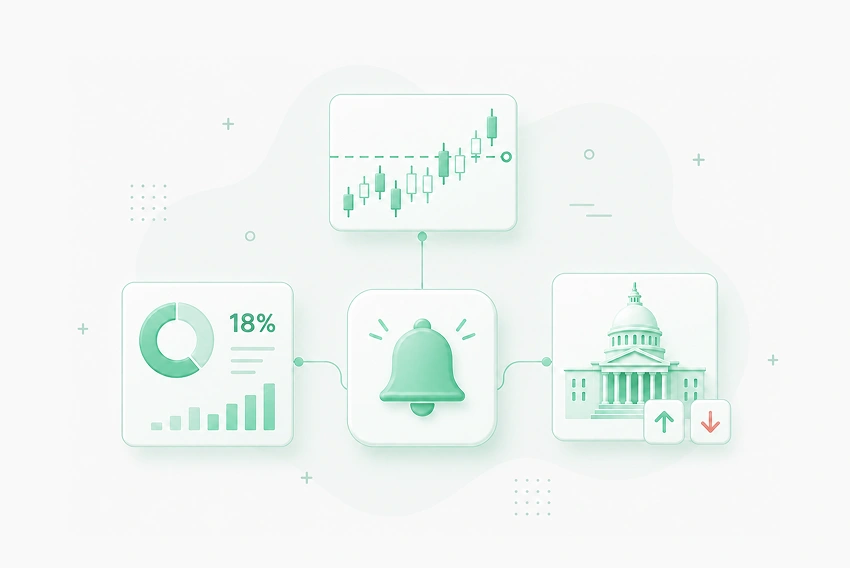
Tracking a stock’s price movement, a fund’s dividend yield, or a lawmaker’s latest disclosed transaction typically means checking the same page repeatedly to catch the moment something changes.
A new alerts system in the FinImpulse Dashboard now removes that manual step. It makes it possible to define the exact conditions to monitor — a price level, a metric threshold, or a specific type of congressional activity — and receive an automatic notification once they are met.
This article covers which alert types are currently available and how they work.
The Alerts Page in the FinImpulse Dashboard
All alerts in FinImpulse are managed through the Alerts page. It is accessible from the main dashboard menu, under My Tools. From here, alerts can be created, reviewed, and managed. The page also includes a short summary of key figures — active alerts, alerts triggered that day, the plan limit, and alerts remaining. This limit applies only to active alerts, and it varies by subscription plan.
What Types of Alerts Are Available
There are three types of alerts that can be created:
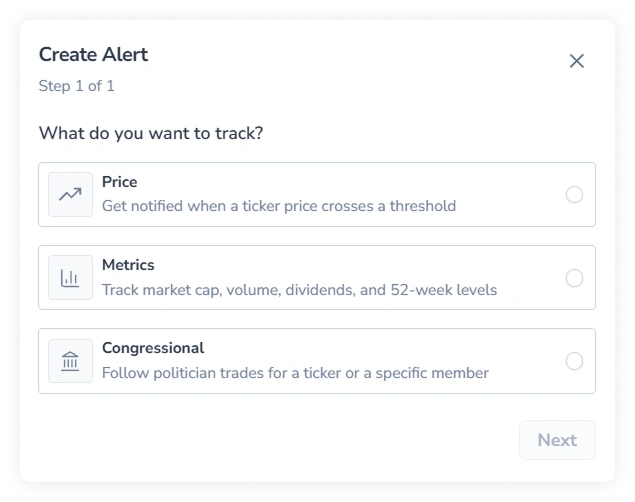
1. Price Alerts
Price alerts track a single ticker’s price against a level or a percentage move. Three conditions are available:
- Price above: Triggers once the price rises past a level the user sets
- Price below: Triggers once the price falls past a level the user sets
- Price change %: Triggers on a percentage move, in either direction or in a direction the user specifies
2. Metrics Alerts
Metrics alerts apply the same logic to a broader set of data points beyond price. Seven conditions are available:
- Market cap above
- Market cap below
- Volume above
- Dividend yield above
- Dividend yield below
- Near 52-week high: Triggers as the price approaches its 52-week high, within a distance the user sets
- Near 52-week low: Triggers as the price approaches its 52-week low, within a distance the user sets
3. Congressional Alerts
Congressional alerts surface disclosed transactions by members of the U.S. Congress, structured around two categories:
- Ticker trades: Tracks disclosed transactions tied to a specific stock, ETF, or fund. Available triggers:
- Any congressional transaction
- Congressional buy
- Congressional sell
- Large transaction
- Multiple members transaction
- Politician trades: Tracks a specific member of Congress, optionally narrowed by party. Available triggers:
- Any new transaction
- New buy
- New sell
- Large transaction
- Delayed disclosure filing
Regardless of type, every alert supports recurring or one-time delivery and an optional expiration date.
How to Create an Alert
An alert can be created either directly from the Alerts page, searching for a ticker or a member of Congress from scratch, or from a Ticker Page or the Search Assets page, using a bell icon that carries the selected ticker into the alert form automatically.
From there, creating any alert follows the same basic sequence:
- Choose an alert type (Price, Metrics, or Congressional) and select a ticker or Congress member.
- Set the condition that the alert should track.
- For Congressional alerts, select the trigger to monitor.
- Choose delivery (email, in-app, or both) and whether the alert should recur or fire only once.
- Optionally set an expiration date.
- Name the alert, review the settings, and save.
Once saved, an alert can be paused, resumed, or deleted at any time on the Alerts page. Additionally, its delivery, recurrence, and expiration settings can be changed.
Alert Notifications: Email and In-App
An alert notification can arrive either by email or in-app, or both.
By email, a Price alert notification is structured as follows:
Subject: AGMB: price above 1
Symbol: AGMB
Current Price: 13.52
Alert Threshold: 1
The message includes an “Open Alert” button linking directly to the alert’s details.
In-app, the same notification appears in the bell icon in the dashboard’s header (notifications area).
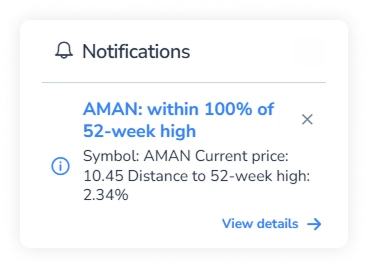
The Notifications dropdown shows the most recent ones. The full history is available on a dedicated Notifications page.