FinImpulse App on Make: No-Code Financial Data Automation
An overview of the FinImpulse app on Make: available modules, scenario building, and no-code workflow examples.

FinImpulse is now available as a verified app on Make. The integration gives users direct access to FinImpulse market data within Make scenarios — without any code.
This article covers what the integration includes, how to build a working scenario from scratch, and what else can be automated with it.
FinImpulse Modules on Make
The FinImpulse app includes 13 modules organized across four categories.
Market Data
- Search assets — returns assets matching a search query (stocks, ETFs, funds)
- Search price history — returns price history, dividends, splits, and other time-based data
- Get asset summary — returns a full snapshot of an asset, including price, fundamentals, and key metrics
- Search asset profile — returns basic information about an asset, including company details, sector, and classification
- Search news — returns the latest news and press releases for an asset
Analyst Insights
- Search earnings data — returns EPS, revenue, analyst estimates, revisions, trends, and growth metrics
- Get recommendation trends — returns analyst recommendation breakdown over time, including counts for Strong Buy, Buy, Hold, Sell, and Strong Sell
- Search analyst actions — returns a feed of analyst rating actions, including upgrades, downgrades, reiterations, and price target changes
- Search analyst ratings — returns a list of analysts covering an asset, including ratings, coverage details, price targets, and latest updates
Financial Statistics & Risk
- Get key metrics — returns key financial and performance metrics, including valuation and other key indicators
- Search risk metrics — returns risk and risk-adjusted performance metrics, including volatility, drawdown, and other risk indicators
- Search annual returns — returns annual performance data by year, including historical figures by calendar year
Other
- Make an API call — provides a fallback for any endpoint not covered by the dedicated modules, meaning it allows direct access to the full FinImpulse API using custom parameters.
Modules can be used individually or chained into multi-step scenarios — pulling FinImpulse data and routing the output to spreadsheets, Slack, databases, or any other app connected.
How to Build a Make Scenario with FinImpulse
The available modules can support a wide range of financial data workflows, such as monitoring analyst coverage, tracking earnings revisions, logging price snapshots, screening assets, or aggregating risk metrics across a watchlist. Any of these can be scheduled, filtered, and routed to existing tools, without writing a line of code.
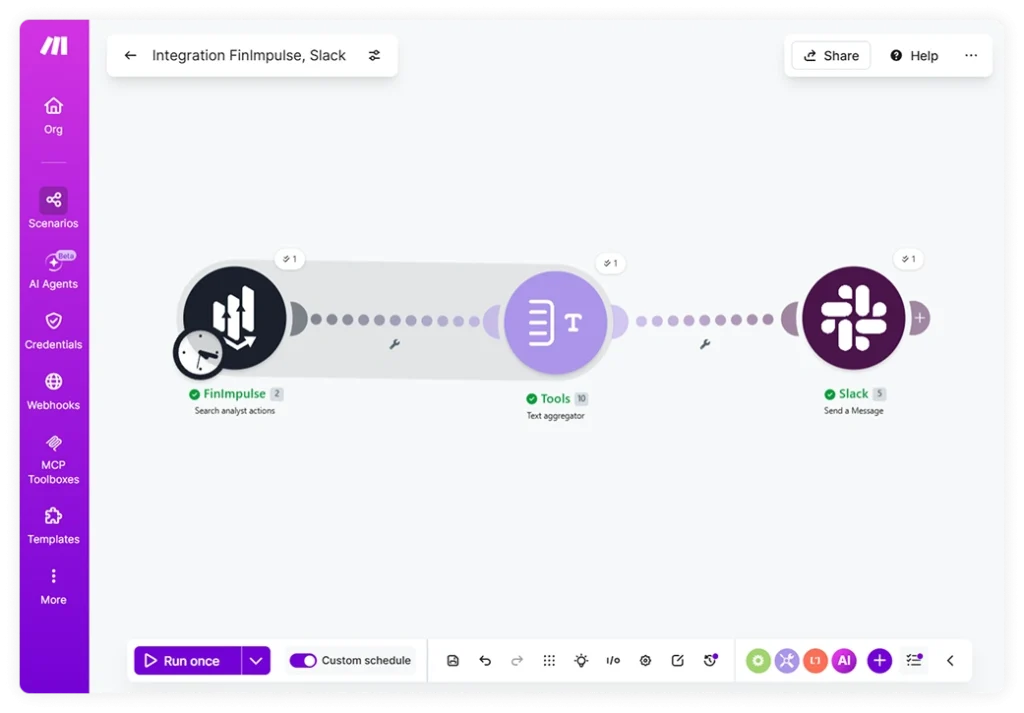
As an example, consider a Monthly Analyst Actions Digest — a scheduled scenario that pulls analyst rating actions for a given ticker over the past 30 days and delivers the output to a Slack channel. Here is the full setup, step by step.
Step 1 — Create a scenario
Sign up on Make if you don’t have an account yet. Once in, click Create scenario to open the scenario editor.
Step 2 — Add and Configure the FinImpulse Module
Search for the FinImpulse app in the module search and add the Search analyst actions module to the canvas. On first use, Make will prompt you to create a connection — enter your FinImpulse API key, which is available in your account dashboard.
Then, configure the module with the following parameters:
- Asset identifier:
AAPL(or any ticker you want to monitor) - Start date:
{{formatDate(addDays(now; -30); "YYYY-MM-DD")}} - End date:
{{formatDate(now; "YYYY-MM-DD")}} - Limit: 100
The date expressions use Make’s built-in formula syntax. now returns the current timestamp, addDays offsets it by the specified number of days, and formatDate converts the result to the format the API expects. This means the window always reflects the most recent 30 days, regardless of when the scenario runs.
Step 3 — Add the Text Aggregator
Next, add a Flow Control → Text aggregator module after FinImpulse. This module collects the individual records returned by the API and combines them into a single block of text, which will form the body of the Slack message.
In the module settings (advanced):
- Source module: select the FinImpulse module
- Row separator: New row
- Text: build one line per record using the available fields — for example:
{{firm}} | {{from_grade}} → {{to_grade}} | Target: ${{current_price_target}} | {{formatDate(grade_date; "DD.MM.YYYY")}}
Step 4 — Connect Slack and Configure the Message
Search for Slack in the module search and add the Send a Message module. If Slack is not yet connected, Make will prompt you to authorize the connection. Once connected, select the target channel and its type.
In the Text field, compose the message. For example:
*AAPL analyst actions this month*
{{text}}
The {{text}} variable maps to the aggregated output from the previous module — the complete list of analyst actions assembled as a single string.
Step 5 — Schedule the Scenario
Finally, press the clock icon on the FinImpulse module to set the run schedule. In the settings, set the frequency to Monthly and select the day and time — for example, the first day of the month at 9:00 AM. Once activated, the scenario runs automatically on the set schedule.
The resulting Slack message looks like this:
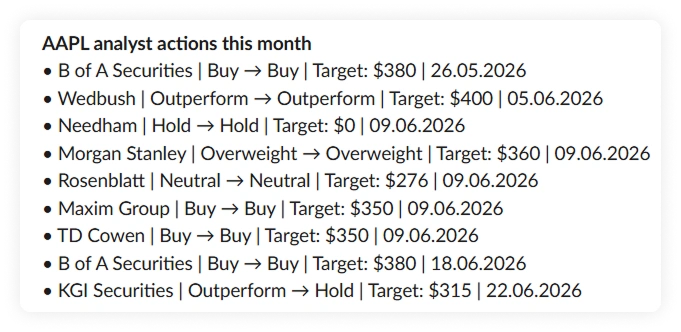
The full setup takes five steps and under 30 minutes — after which the scenario runs without any further input.
- The FinImpulse module queries the API for all analyst actions within the defined date range and returns the results as a structured array.
- The Text aggregator then processes each record and assembles them into a single formatted message.
- Slack receives that message and posts it to the designated channel.
Other Financial Workflows to Automate
The scenario above is a starting point — the same structural logic applies across all 13 modules.
Risk and performance metrics can be pulled on a schedule and stored in a spreadsheet for ongoing historical tracking. Earnings figures can be retrieved after results are published and routed to a team channel or internal database. Recommendation trends, logged periodically, can build a record of how analyst coverage on a position shifts over time. News feeds can work the same way — delivered automatically to documentation systems, research tools, or messaging platforms.
These are just a few examples. Any combination of modules, schedules, and destinations can be configured — the only requirements are a Make account and a FinImpulse API token.