

FinImpulse provides flexible export tools that allow you to download market data directly from the platform. Exports are available across three places:
- Historical Data
- Search Results
- My Watchlist
Exporting is a premium functionality designed for users who require offline analysis, reporting, or integration with external tools.
1. Export Dialog
All export dialogs across FinImpulse share a unified and simple interface, allowing you to export data in three file formats:
- CSV (.csv) — for spreadsheets, databases, and automation tools
- JSON (.json) — for interoperability, APIs, and advanced data processing
- Excel (.xlsx) — for data modeling, visualization, and reporting
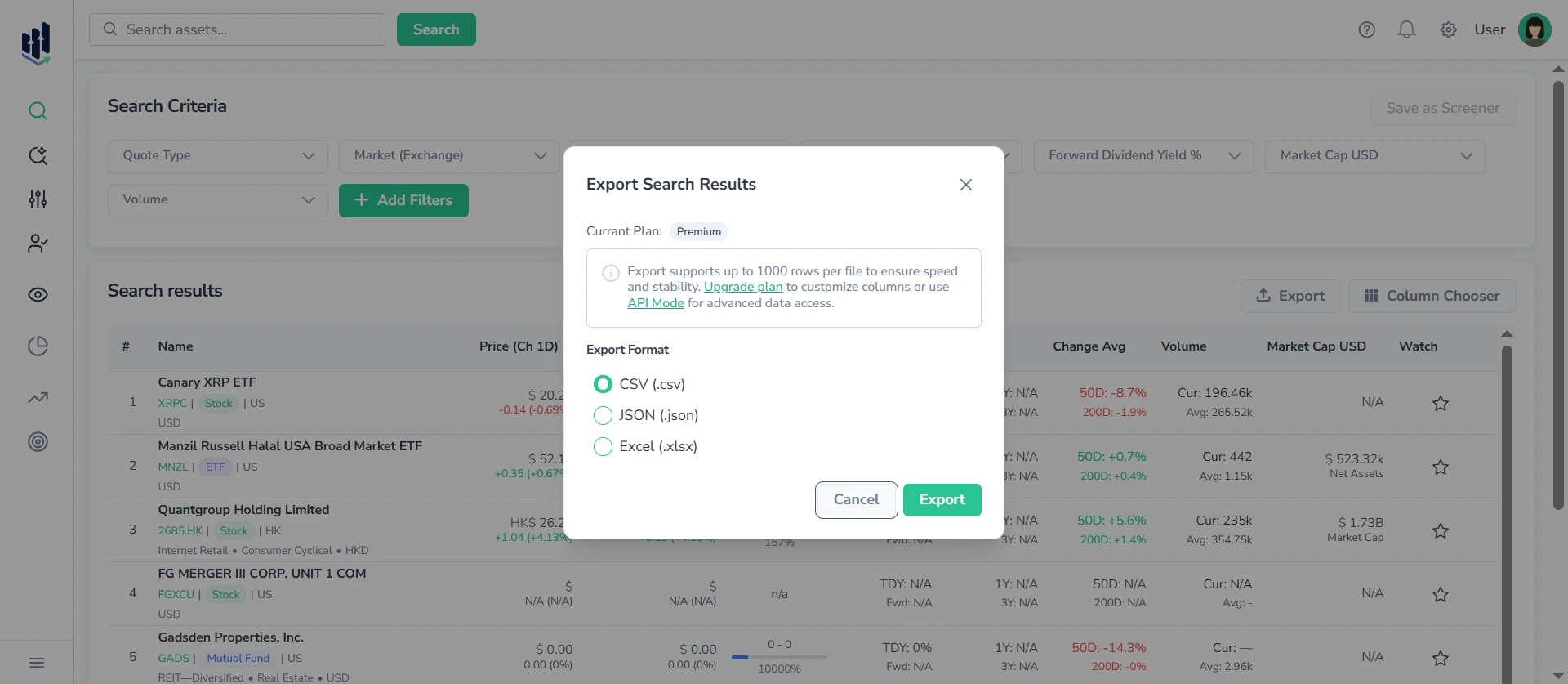
How to use the export dialog:
- Apply all desired filters and settings to display the specific data table you need
- Click the Export button (usually located above the table, in the top right corner)
- Choose your preferred file format in the export dialog
- Click Export to confirm — your file will download immediately.
2. Types of Available Exports
2.1. Export Historical Data
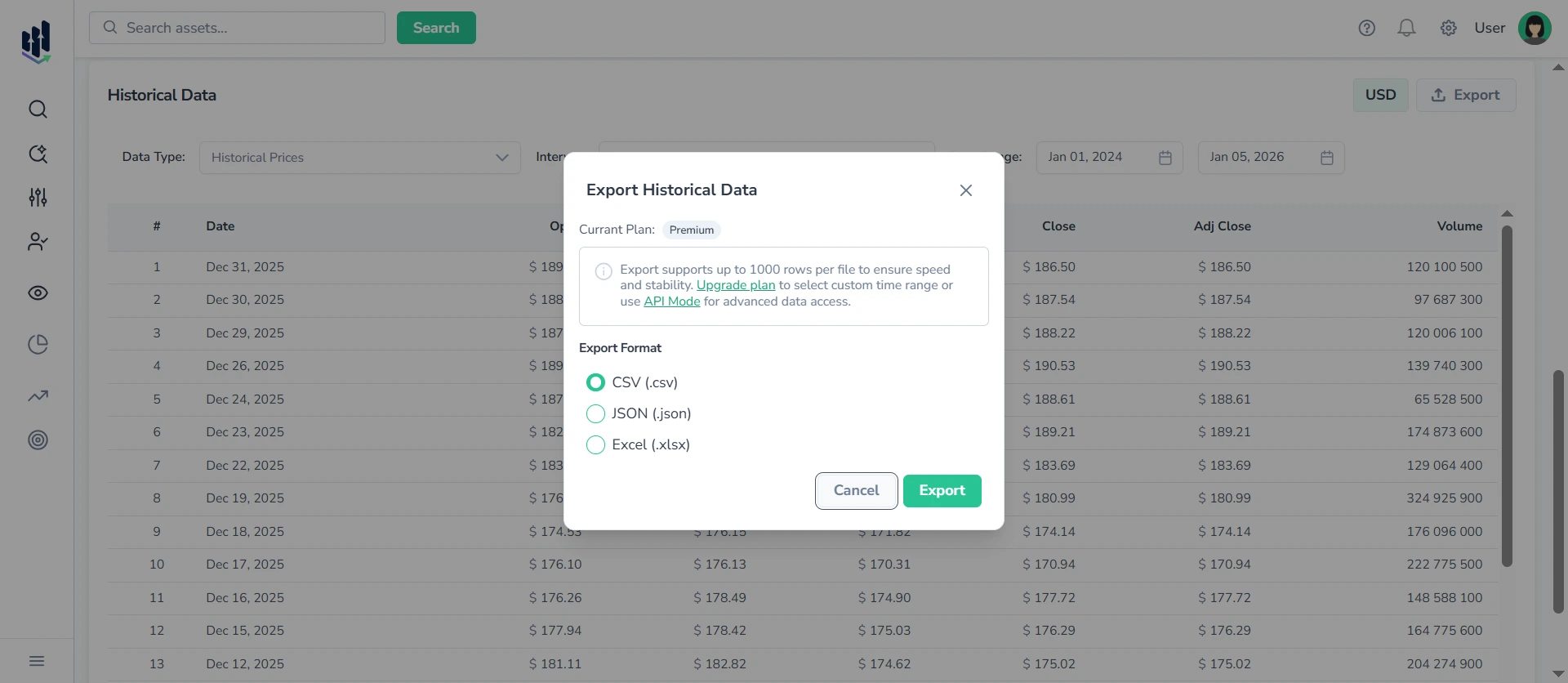
You can export the Historical Data table from the Historical tab of any asset. The export will include all the columns and rows precisely as they appear in the table, with any filters, date ranges, and intervals you have applied.
How to access:
- Open any asset page
- Go to the Historical tab
- Scroll to the Historical Data table
- Click the Export button (top-right corner)
- The export dialog opens
- Select your preferred file format and click Export to download the file
Check the Guide on Using the Historical Tab.
2.2. Export Search Results
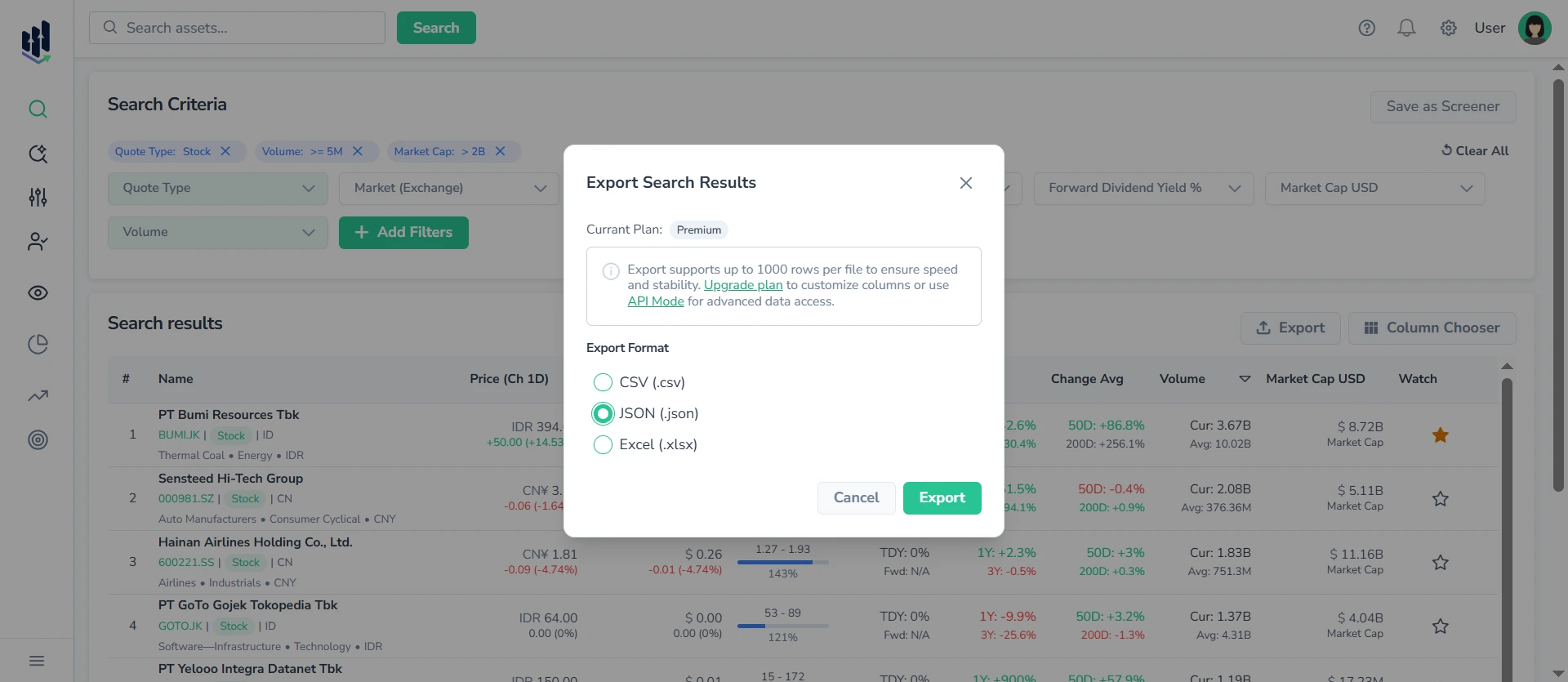
You can export the results table from the Search Assets page. The export will include all rows and columns exactly as they appear in the Search Results table, reflecting any filters, sorting, and column selections you have applied.
How to access:
- Go to the Search Assets page
- Adjust filters and columns as needed
- View the Search Results table
- Click the Export button (top-right corner)
- Select your preferred file format and click Export to download the file
Check the full Guide on Assets Search.
You can also export filtered results directly from any screener:
- Open the Market Screeners or My Screeners section
- Click on a screener
- You’ll be redirected to the Search Assets page with all screener filters automatically applied
- Click the Export button
To learn more, read the Market Screeners & My Screeners Manual.
2.3. Export Watchlist
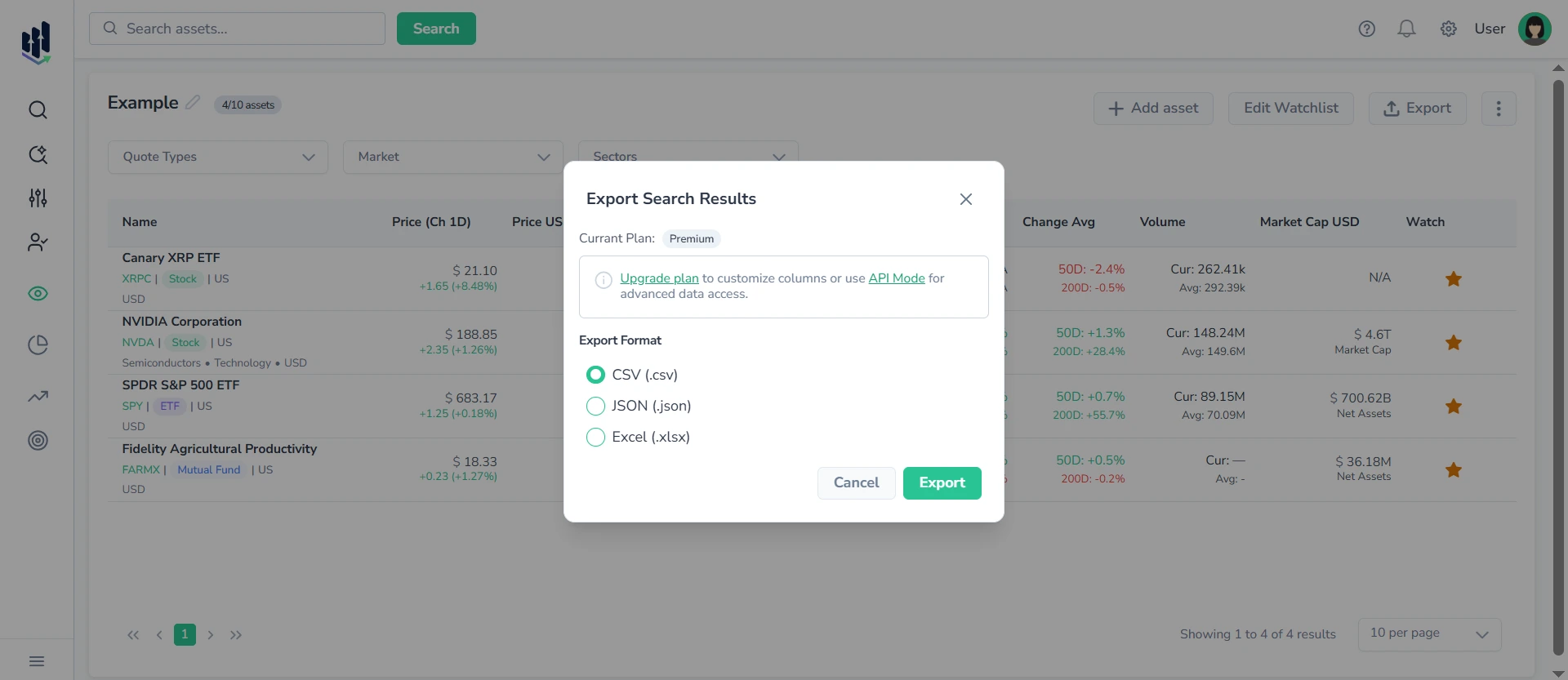
You can export the contents of any individual watchlist. The exported file will include all assets and data exactly as displayed in the Watchlist table, with your selected columns and sorting.
How to access:
- Go to the My Watchlist
- View the list of your watchlists as a table
- Click on a specific watchlist to open its contents
- Adjust columns and sorting as needed
- Click Export
- Select your preferred file format and click Export to download the file
Read the full Guide on My Watchlist.
3. Need Full Data Access? Use the API
For users who require comprehensive dataset extraction, deep historical data, or automated workflows, we offer a robust REST API.
With the API, you can:
- Retrieve unlimited amounts of data with pagination
- Access the full historical depth of any supported dataset
- Automate data extraction for integration with BI tools and external systems
- Build custom pipelines for analysis and reporting
For advanced data access or exports beyond the standard file size, switch to API Mode.