

FinImpulse offers an advanced, multi-layered search and filtering system that enables users to explore, screen, and analyze over 600,000 global assets. This guide explains how to use interactive elements of the search interface, including filters, advanced filters, and screeners.
1. Top Search Bar — Global Asset Search
The top search bar lets you perform a quick, global lookup across all available assets.
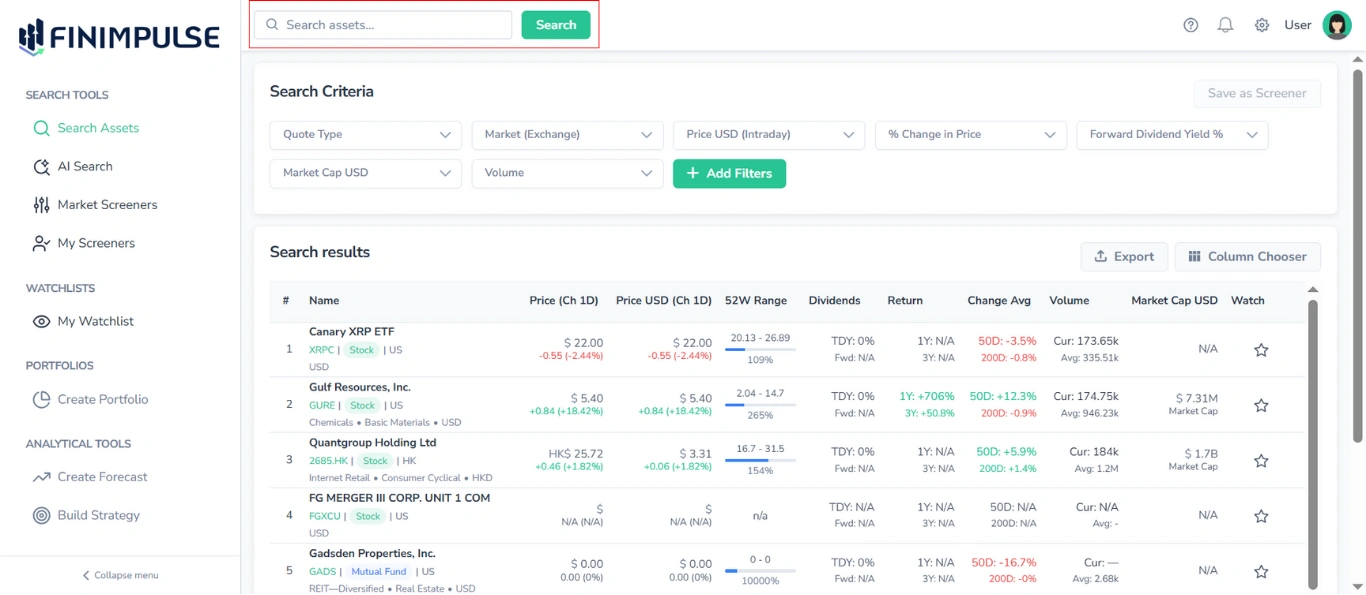
You can search by:
- company or fund name
- ticker symbol
To update results, click Search. Results include both exact and partial matches.
Important: The Top Search Bar is accessible throughout FinImpuls. When you enter a query and click Search, you will always be redirected to the Search Assets page.
2. Search Criteria Bar
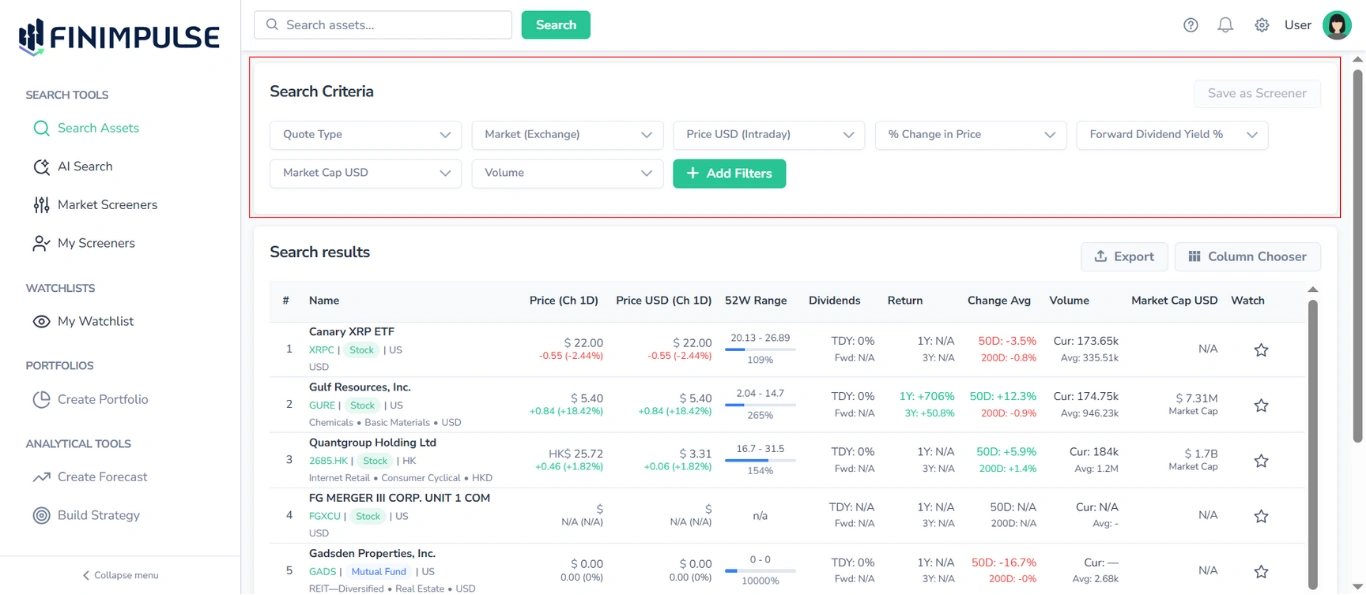
Located directly under the Top Search Bar, the Search Criteria Bar provides quick access to the most commonly used filters and Advanced Filters.
2.1. Filter Types and Behaviors
FinImpulse supports several filter logic types to accommodate different investor workflows.
2.1.1. Text-Based Filters (Quote Type, Market, Sector, etc.)
These filters work with checkbox or multi-select logic.
Available actions:
- Include: Show only selected categories.
- Exclude: Remove selected categories from results.
- Multi-selection: Select any number of items at once.
2.1.2. Numeric Filters (Price, Market Cap, Change)
For numeric values, FinImpulse supports different comparison operators:
Operators:
- More Than
- Less Than
- Equal
- Between
Examples:
- Price (Intraday) → More than → type 10
- Market Cap → Between → type 1B and 10B
- 52 Week Price Low → Less than → type 50
2.1.3. Predefined Quick Filters
Some filters offer one-click shortcuts for common screening ratios.
Examples:
- Change vs 50-Day Average %
- Avg Volume (10 day)
These shortcuts save time and are ideal for quick scouting.
Note: Predefined Quick Filters are a special type of Numeric Filter that provides convenient one-click shortcuts for common ratios. However, you can always customize these filters by setting your own values — choose the Custom option. Custom values use the same logic and operators as Numeric Filters.
2.1.4. Public Financial Reports & Company Name Availability Filters
For these filters, you can only select between two predefined options. There is no ability to enter or set a custom value for these filters — they work exclusively as simple choices.
2.2. Basic Filters
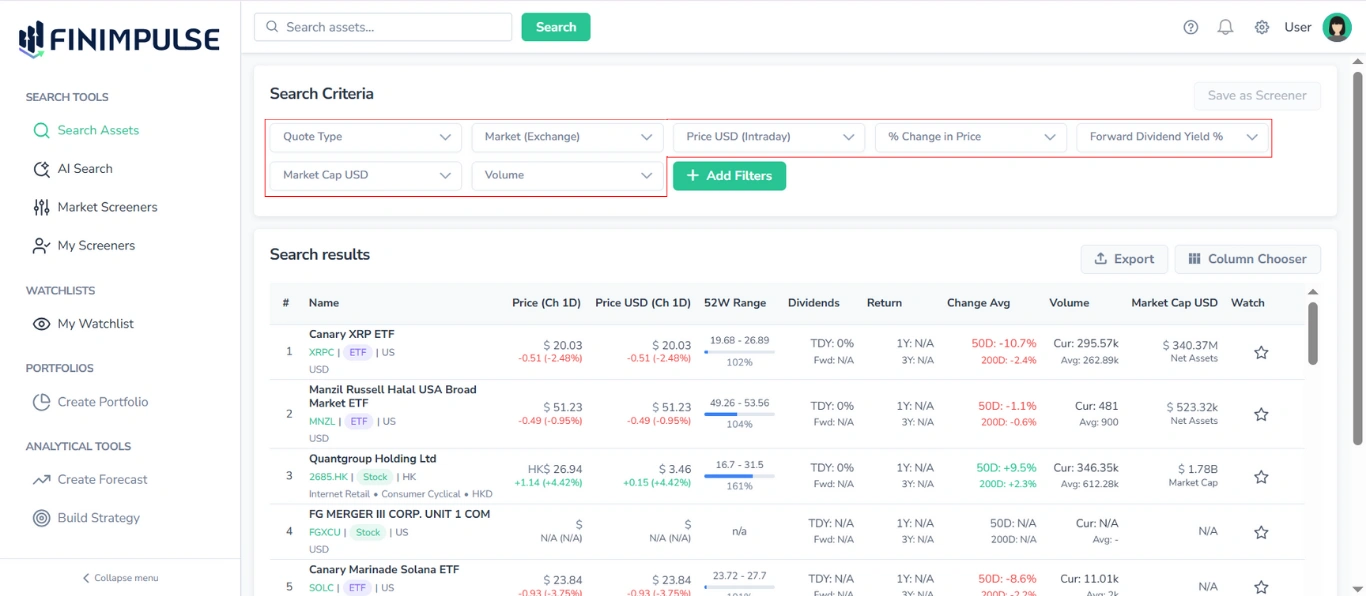
These filters are immediately visible to the user:
- Quote Type
- Market (Exchange)
- Price USD (Intraday)
- % Change in Price
- Forward Dividend Yield %
- Market Cap USD
- Volume
These filters are set and applied individually, but all active filters work together — multiple filters can be applied to refine the results.
2.3. Advanced Filters
Clicking Add Filters opens an extended filter library.
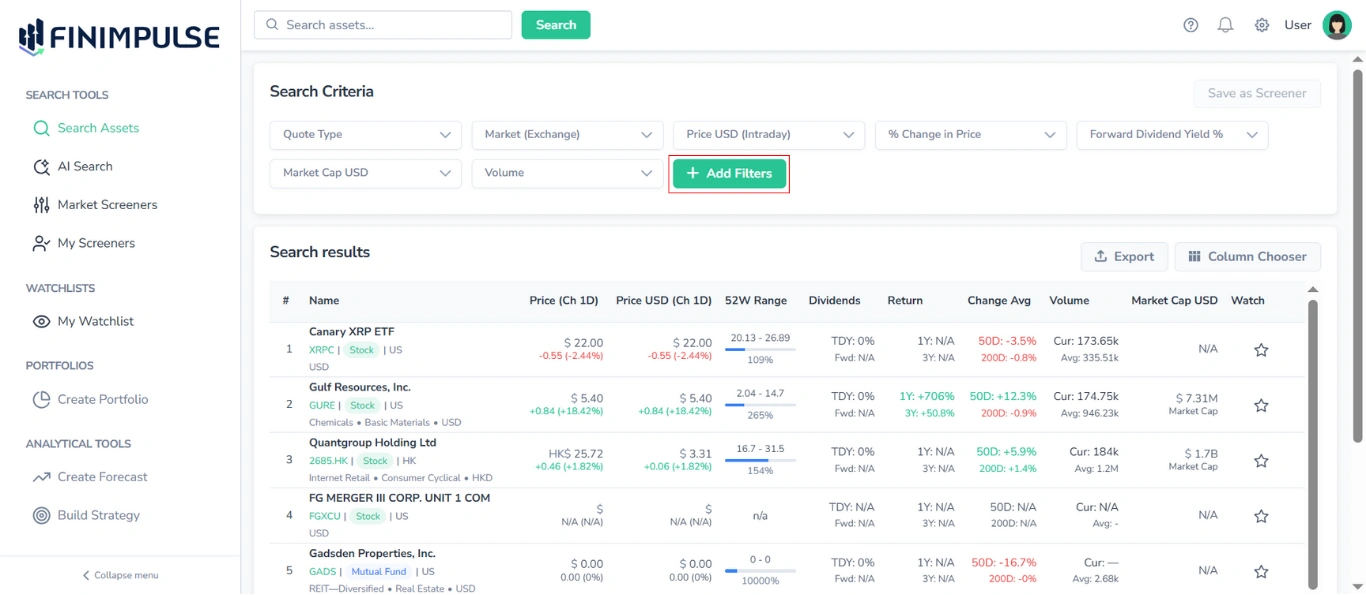
Note: The Add More Filters dialog contains all filters available inside FinImpuls, including basic ones.
The library is grouped into 5 categories:
2.3.1. Popular
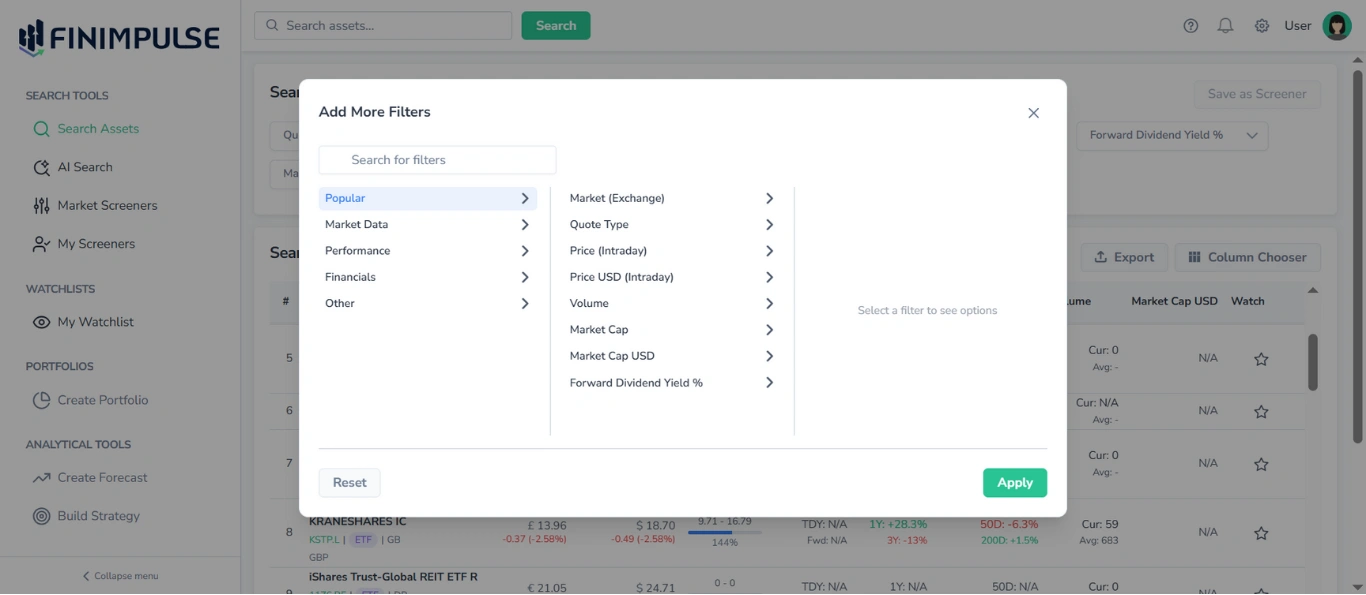
Frequently used filters:
- Market (Exchange)
- Quote Type
- Price (Intraday)
- Price USD (Intraday)
- Volume
- Market Cap
- Market Cap USD
- Forward Dividend Yield %
2.3.2. Market Data
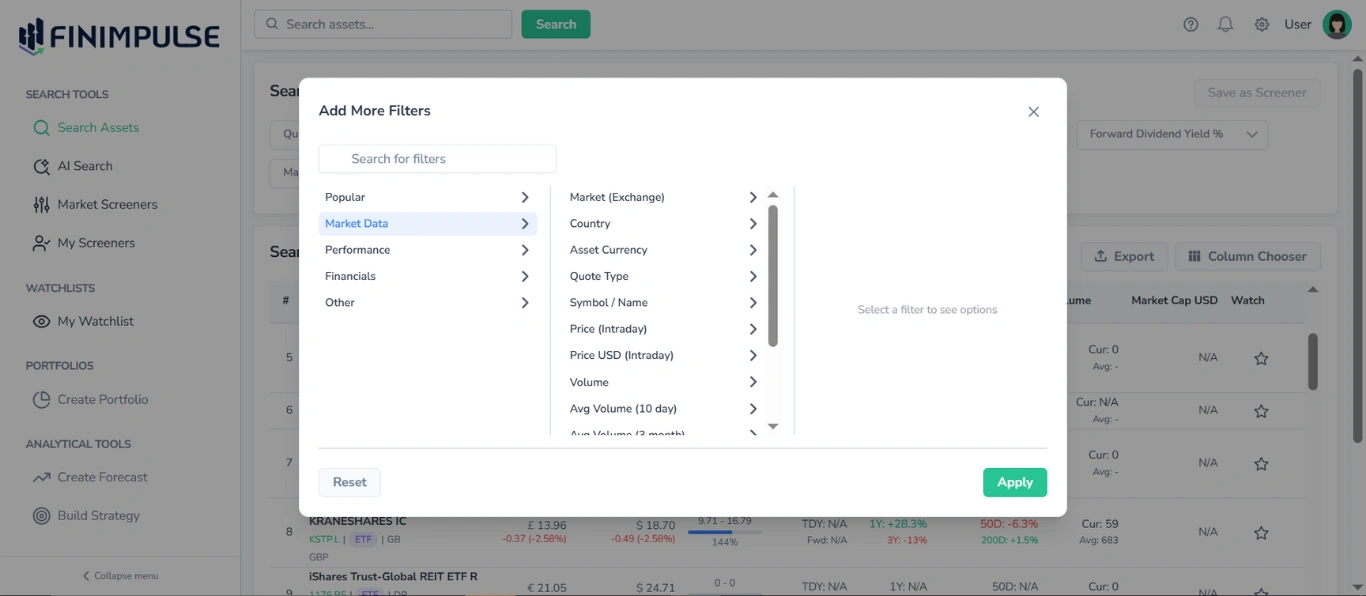
Key reference and real-time performance filters:
- Market (Exchange)
- Country
- Asset Currency
- Quote Type
- Symbol / Name
- Price (Intraday)
- Price USD (Intraday)
- Volume
- Avg Volume (10 day)
- Avg Volume (3 month)
- Market Cap
- Market Cap USD
- Sector
- Industry
2.3.3. Performance
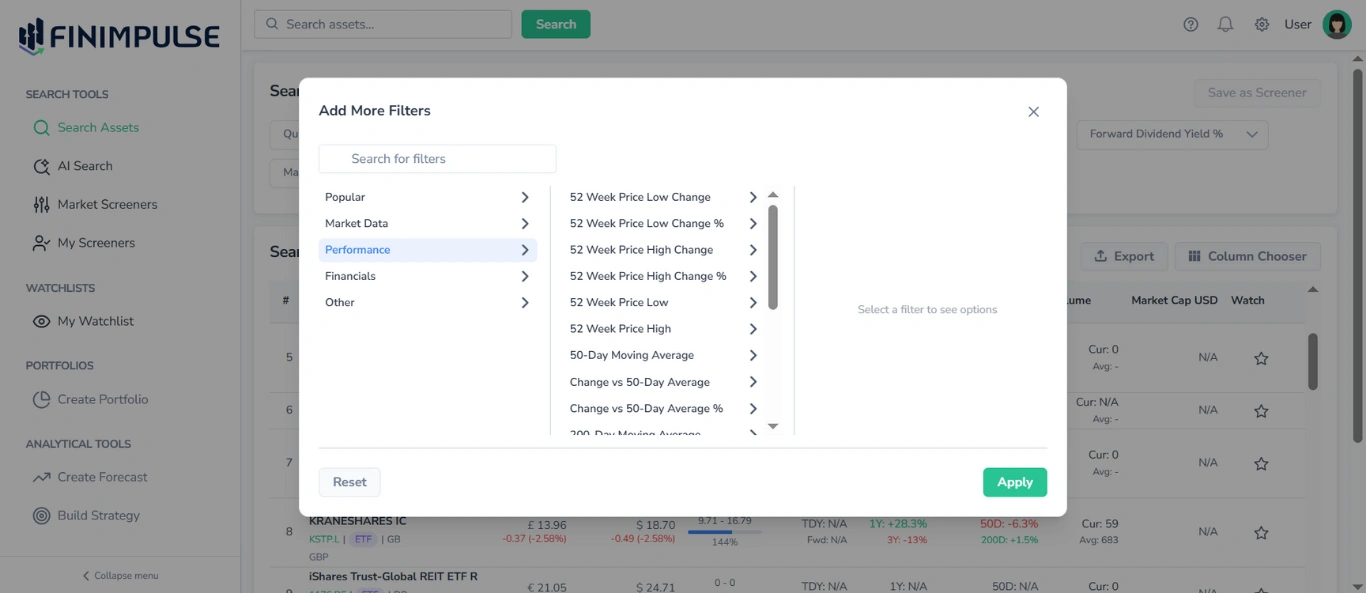
Price trends, return, and dividend metrics:
- 52 Week Price Low / High
- 52 Week Change (abs & %)
- 50-Day & 200-Day Moving Average
- Change vs Moving Averages (abs & %)
- 1-Year & 3-Year Return
- % Change in Price
- Trailing/Forward Dividend Rate/Yield
Covers price momentum, trend, and yield indicators. Ideal for long-term investors and quantitative workflows.
2.3.4. Financials
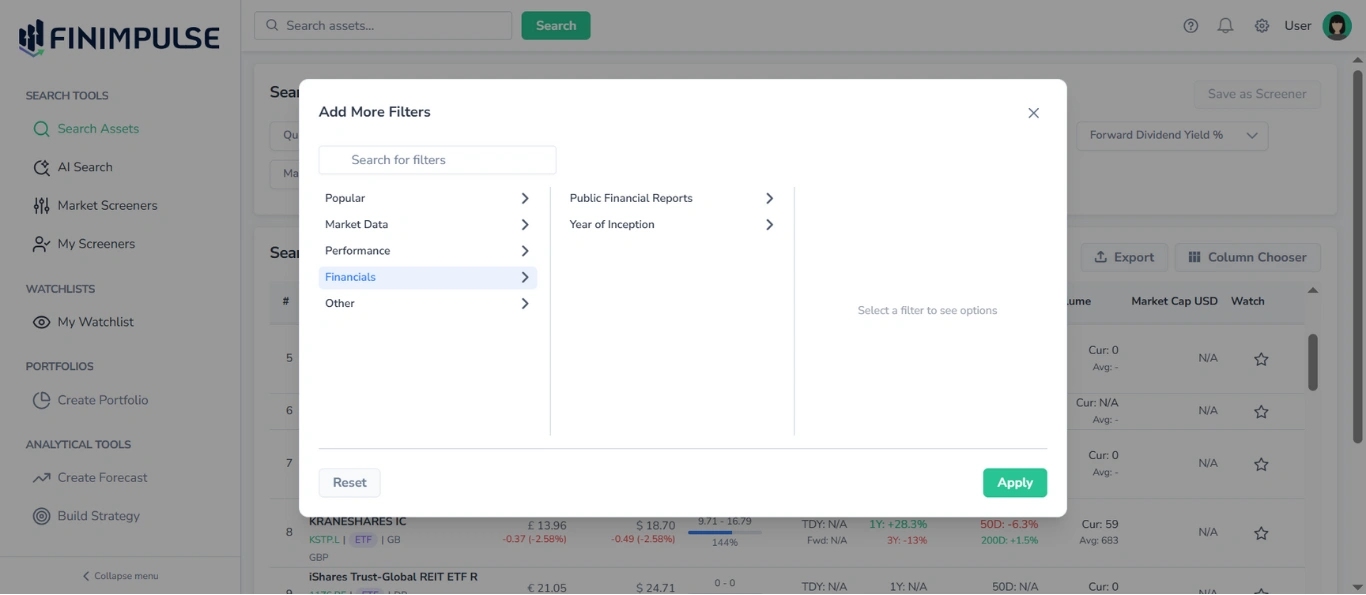
Designed to help you quickly find and analyze assets based on their financial information. There are two filters in this category:
1) Public Financial Reports
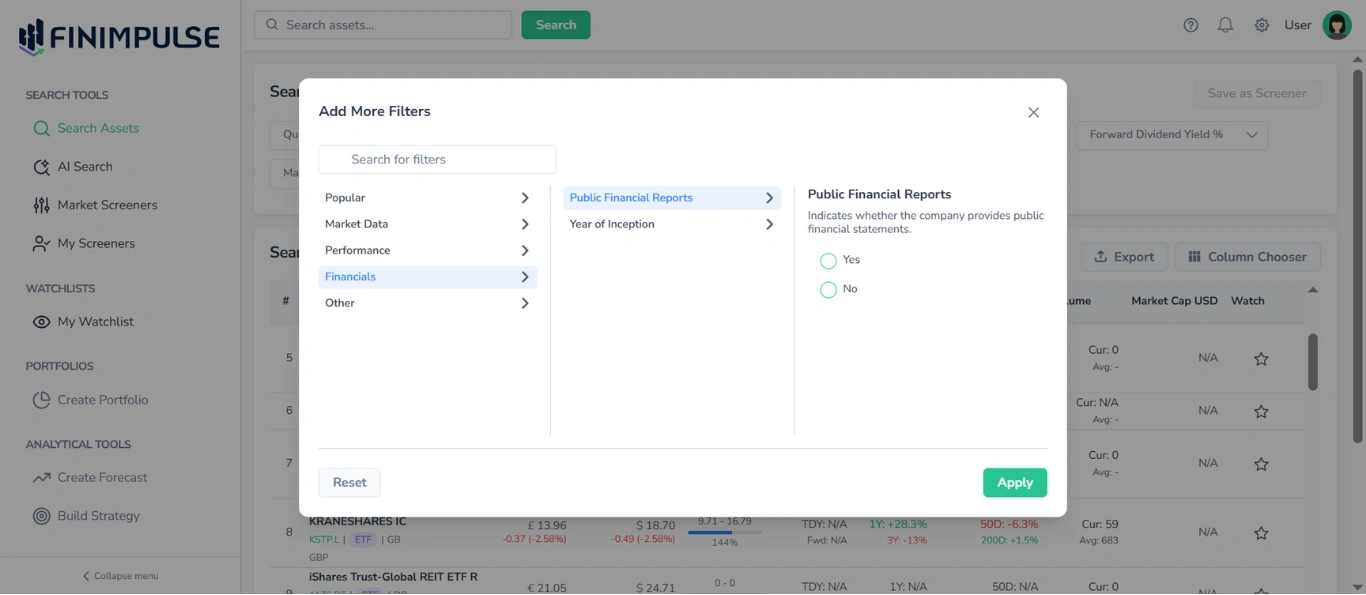
Identifies assets with or without available:
- Income Statements
- Balance Sheets
- Cash Flow Statements
The effect of the Public Financial Reports filter is reflected in the Financials tab, where you can view whether the asset has/not financial statements.
For a detailed overview, see the Financials Tab Guide.
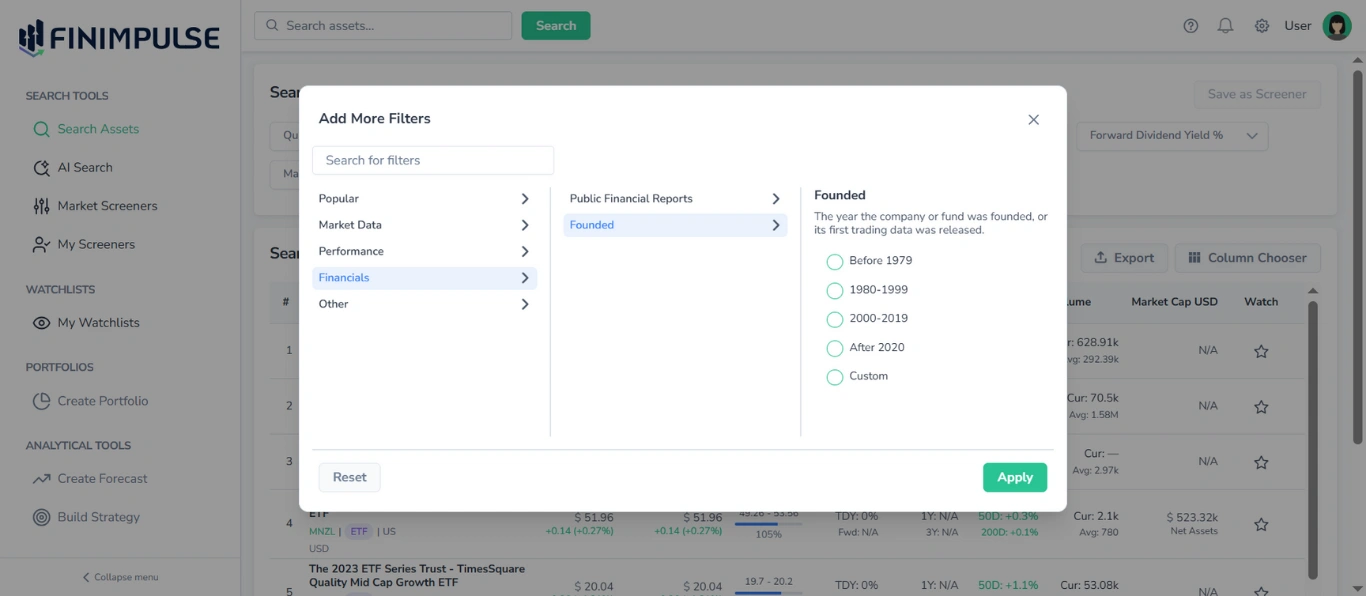
2) Founded
Allows filtering by the year of creation.
2.3.5. Other
Because our database includes all possible tickers worldwide — not just popular ones, but also technical, temporary, and system instrument identifierіes — many may not have a company name.
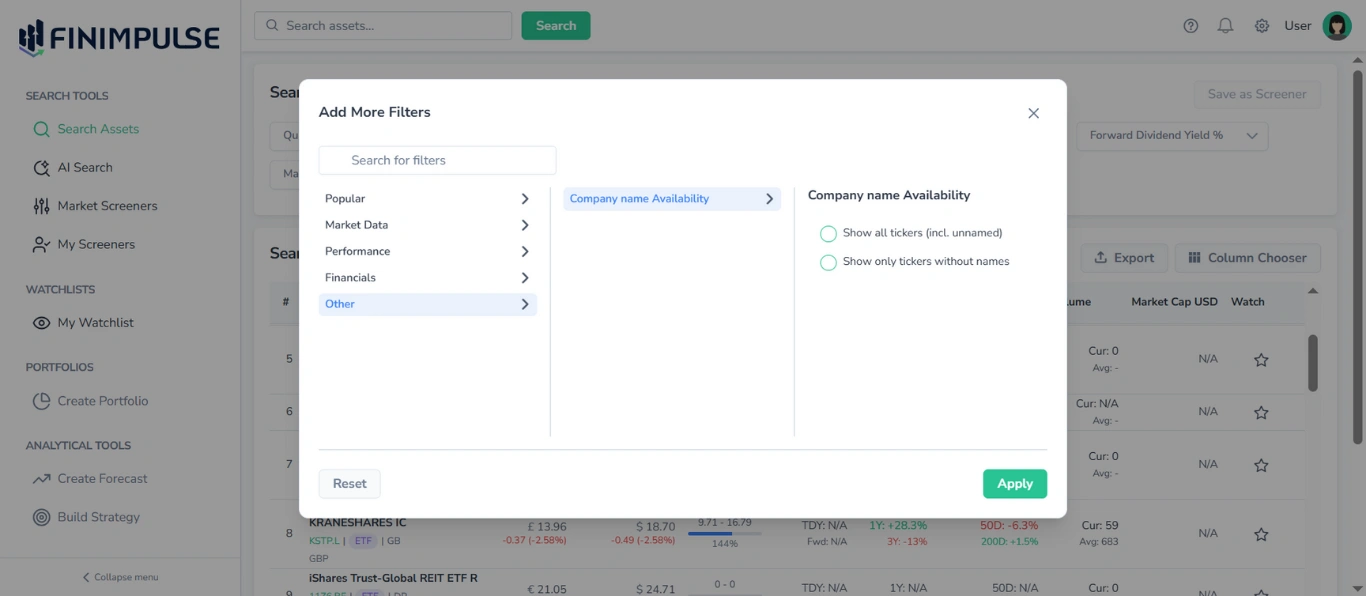
By default, only tickers with names are shown to avoid clutter. With the Company name Availability filter, you can choose to display all system tickers (with or without names) or show only tickers without names as needed.
2.3.6. Search for Filters Bar
Lets you quickly find specific filters.
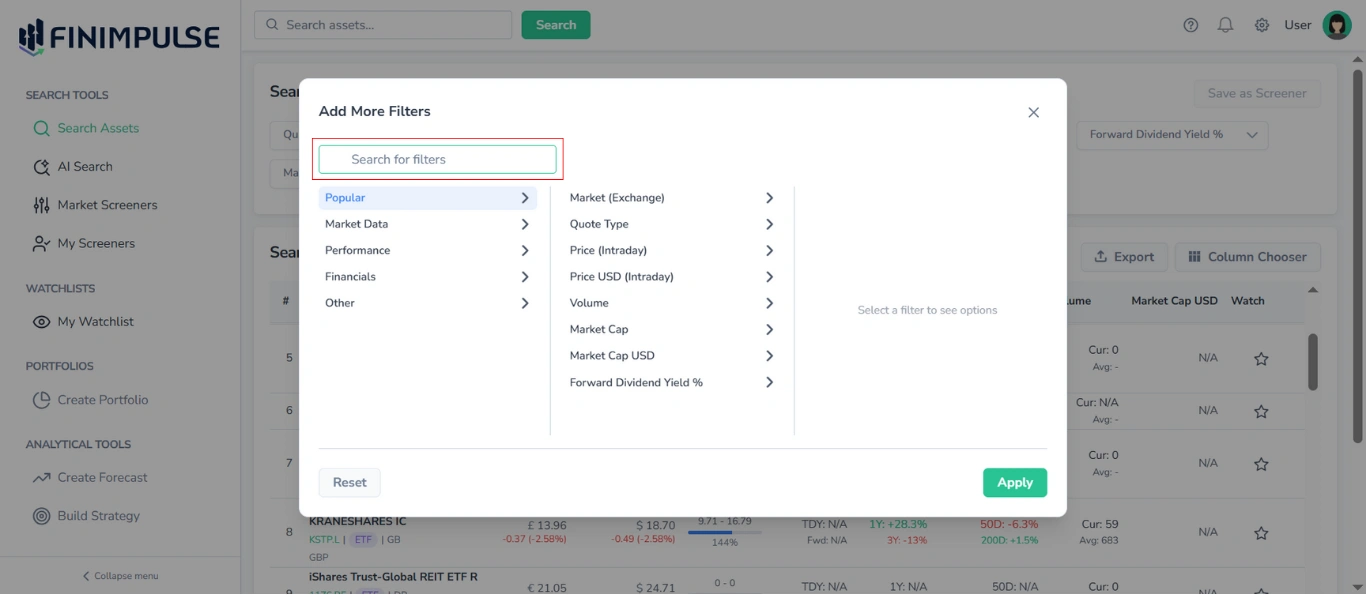
You can type a single letter, a few letters, a word, or a full filter name — results will instantly update to show all filters that match your input.
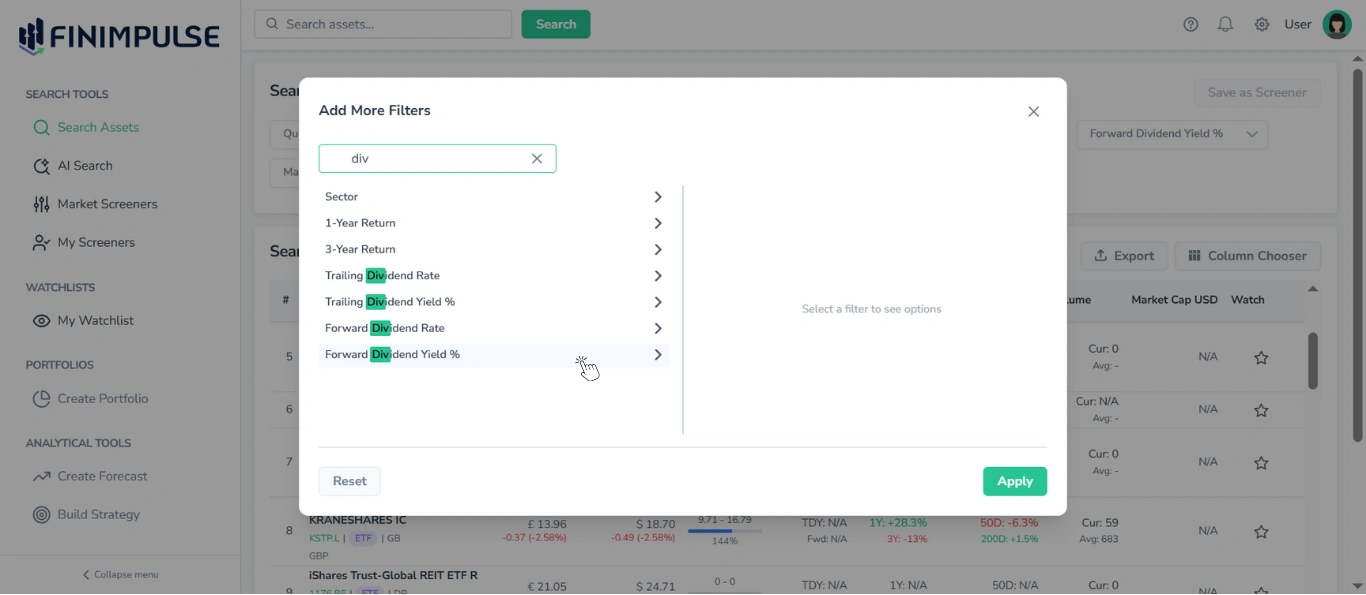
To open a filter from the dropdown results: Click on it.
Note: Clicking on any filter displays its definition and the available options, which may differ depending on the filter type. See sec. 2.1. for details.
2.4. Managing Filters
2.4.1. Adding Filters
You can add filters in two ways:
- To add a basic filter: Select the one you need → Configure the value → click Apply.
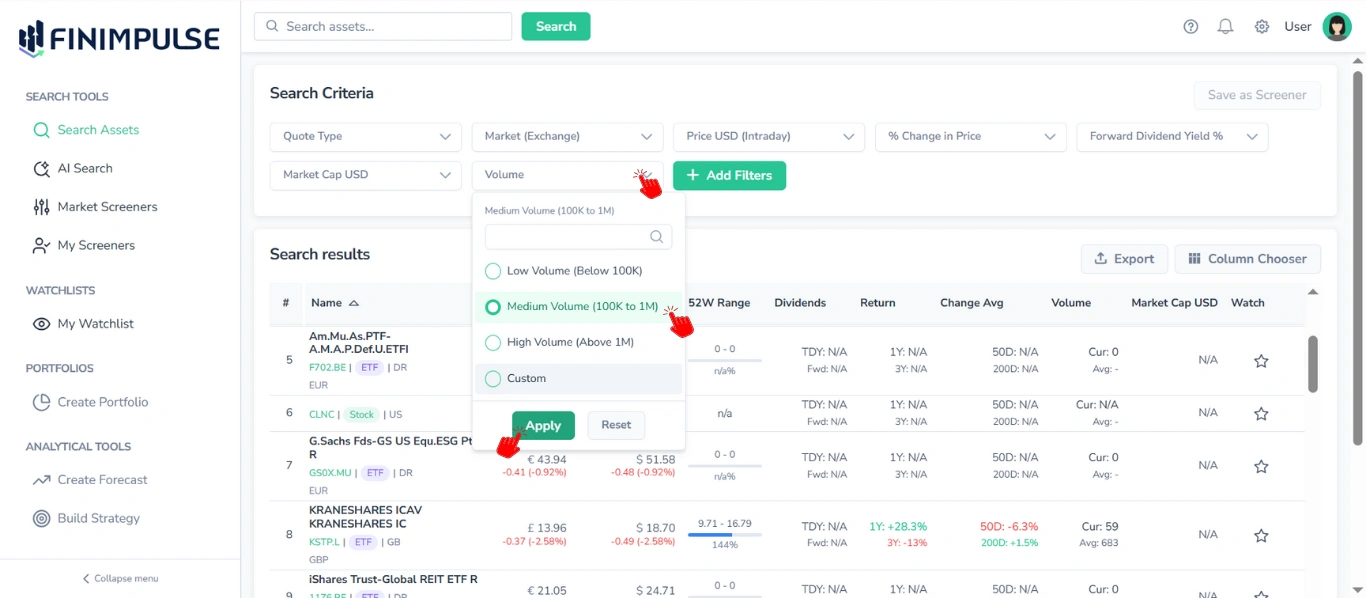
- To add any filter: Click Add Filters → The dialog appears → Select a category → Choose the desired filter → Configure its value → Click Apply.
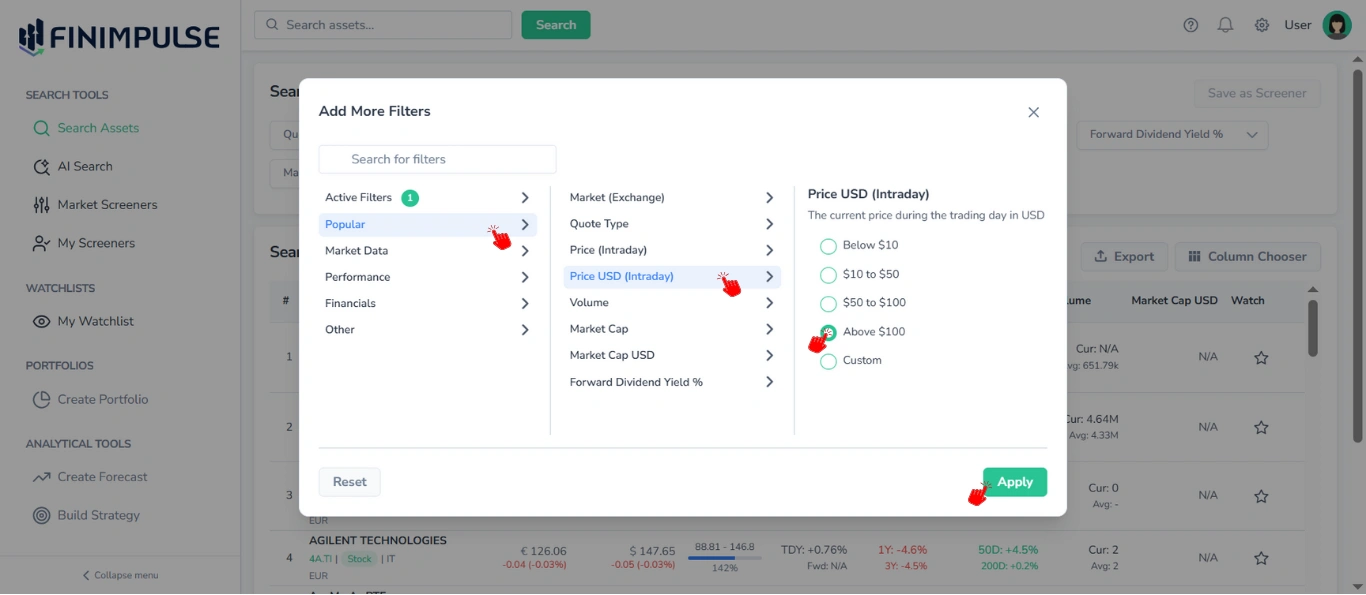
Important: While each basic filter is set and saved individually, in Advanced Filters, you can select and adjust multiple filters at once, then apply them all together with a single click.
2.4.2. Editing Filters
Editing is available in two ways as well:
- To edit a basic filter: Click the desired filter → Adjust its value → Click Apply (the logic is identical to adding a basic filter).
- To edit any filter: Click Add Filters → The dialog appears → Click the Active Filters chip → Choose the desired filter → Adjust its value → Click Apply.
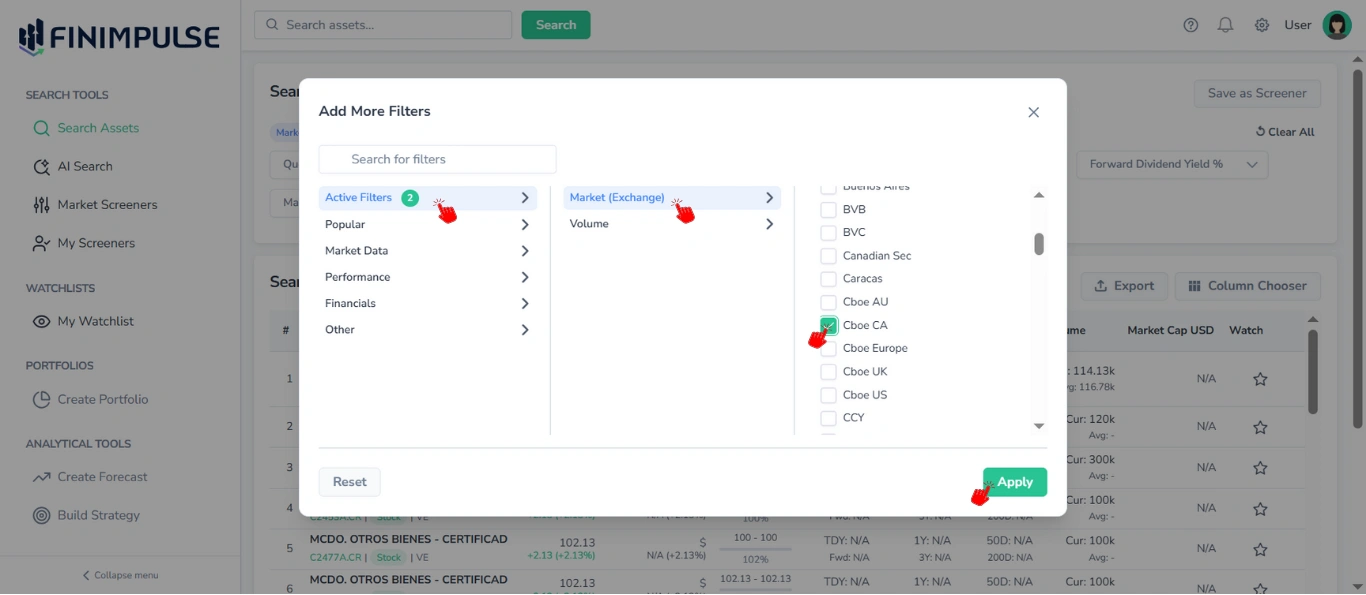
Important: Just as you can add multiple filters at once in Advanced Filters, you can also edit several filters before applying all changes together with a single click — there’s no need to save each filter individually.
2.4.3. Removing Filters
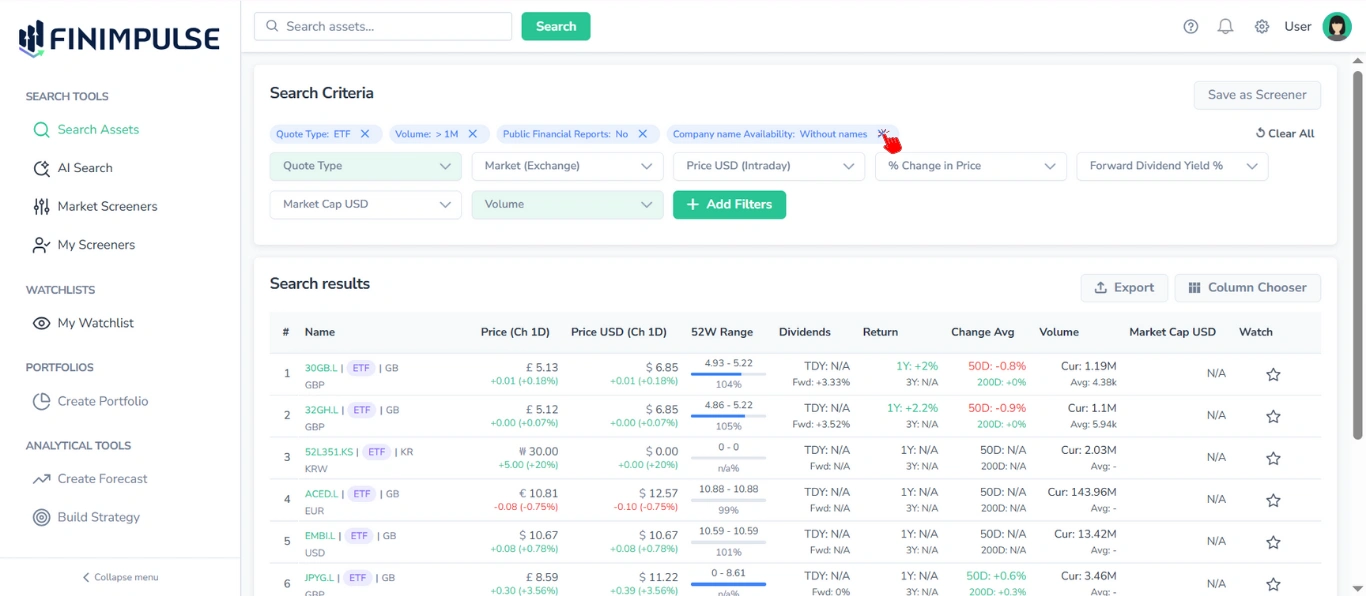
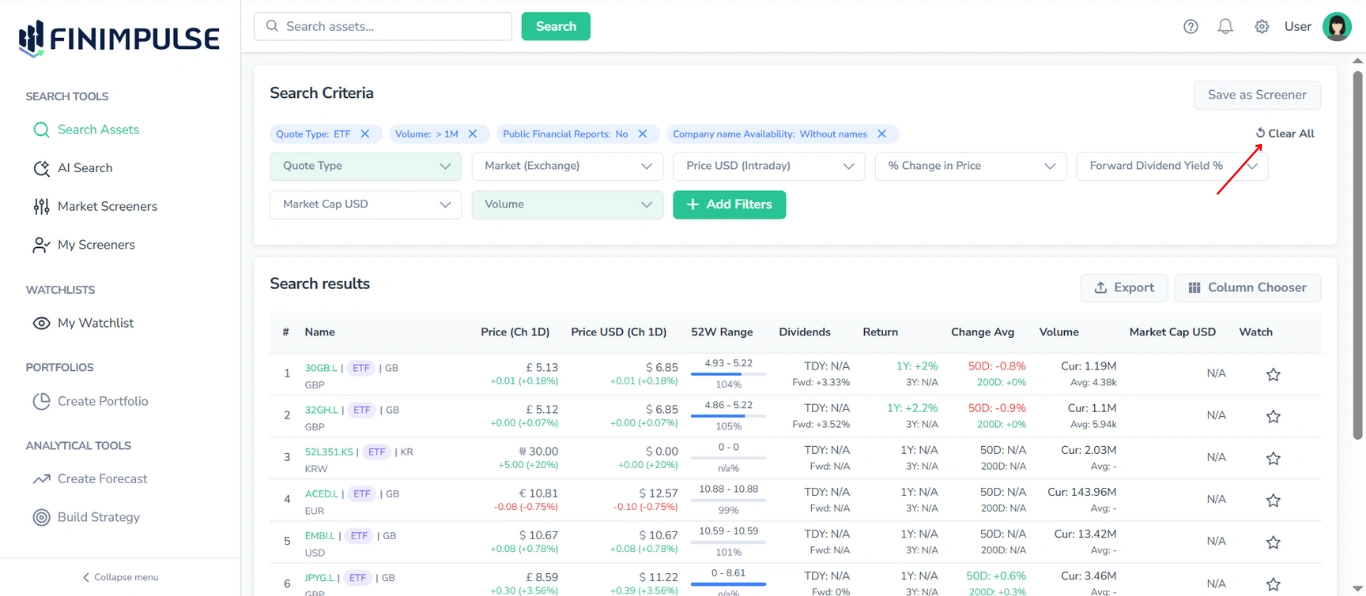
All active filters are displayed as tags above the basic filters.
- To remove a filter: Click the “X” icon on the filter chip.
- To remove all filters at once: Click Clear All.
2.5. Custom Screeners
You can create your own screeners (sets of filters) directly from the Search Criteria section.
For complete details, please read the My Screeners Guide.
3. Search Results
On the Assets Search page, you’ll also find a Search results table displaying all assets matching your search criteria. This table allows you to view, sort, and access tickers.
For detailed information, see the Search Results Manual.