

Faster Navigation: Autocomplete and Recent Searches in the Top Search Bar
An overview of the updated top search bar — autocomplete suggestions, recent search history, and direct ticker page navigation.
Previously, the top search bar in the FinImpulse dashboard operated as a straightforward input field: entering a query and pressing the Search button returned a results table with full and partial matches. No suggestions appeared during typing, and the field showed no history upon activation.
The update introduces two additions — autocomplete and recent search history — and extends the bar’s role as a navigation tool.
Top Search Bar Capabilities
The top search bar is accessible from the header across all pages of the FinImpulse dashboard. With the latest update, it now supports three distinct behaviors alongside the existing search functionality.
1. Recent Searches
When the top search bar is activated by clicking on it, the dropdown displays the user’s most recent queries.
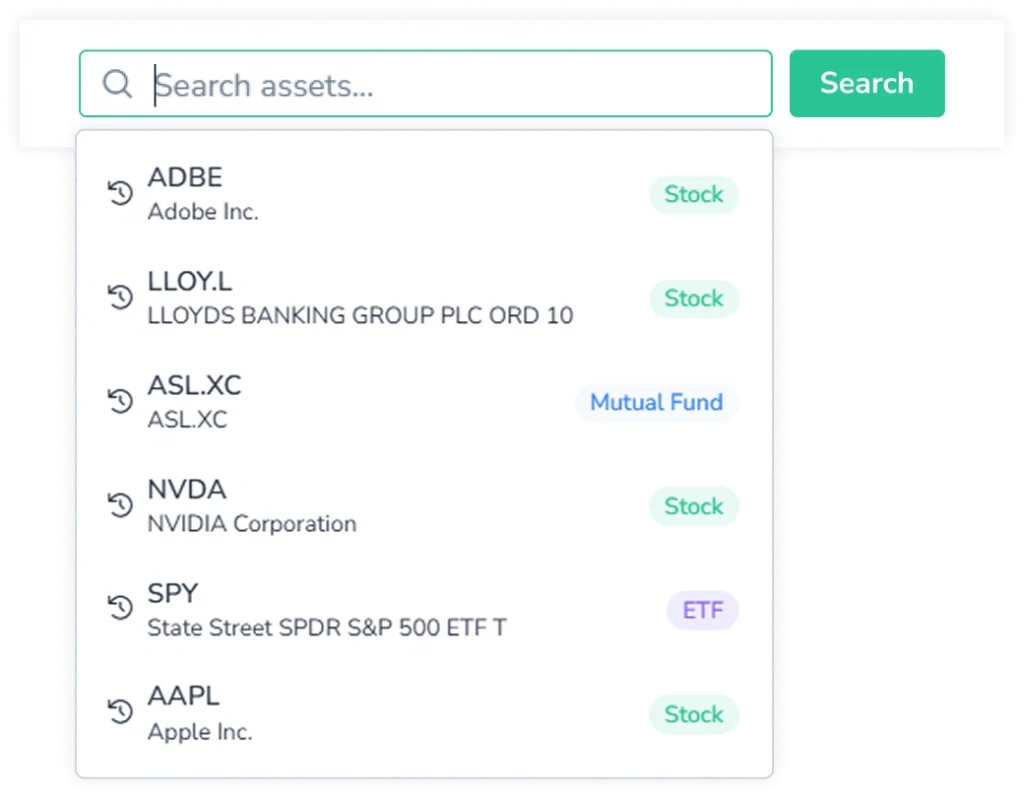
This provides quick access to previously searched tickers without re-entering them manually.
2. Autocomplete Dropdown
As characters are entered into the search field, a dropdown appears below the bar displaying matching ticker suggestions.
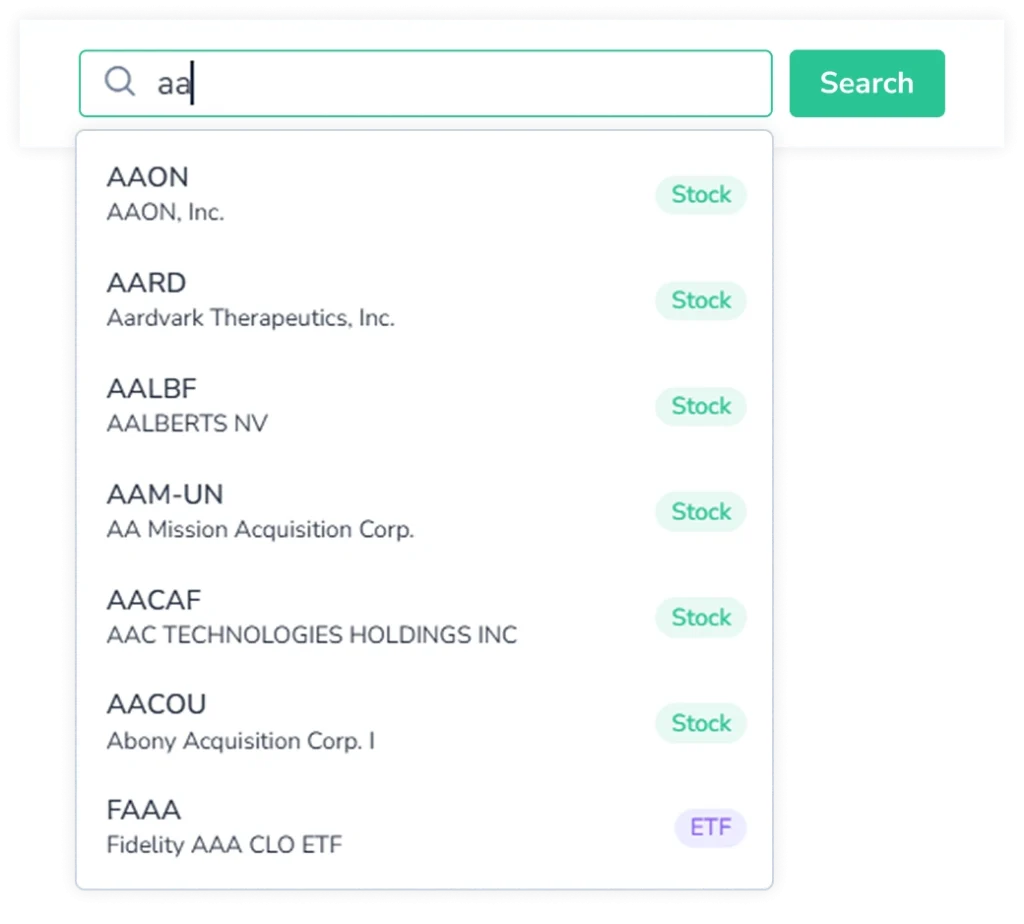
Results update dynamically with each keystroke, narrowing to tickers that correspond to the input.
If no matches are found in the dataset, the dropdown immediately displays a “No results found” message — without requiring the user to submit the query or check the results table.
3. Direct Navigation to the Ticker Page
Selecting a suggestion from the autocomplete dropdown navigates directly to the corresponding ticker page — the core analytical module in the FinImpulse dashboard, providing data on stocks, ETFs, and mutual funds.
Previously, reaching a ticker page required submitting a query, then selecting an asset from the results table. That step is now optional.
Available Search Workflows
The update preserves the existing search behavior while adding an alternative navigation path. Both workflows remain available:
- Search mode: Enter a query and press Enter or click the Search button. The search results table displays all matching assets and can be further refined using filters, enabling broader comparison across multiple results.
- Autocomplete mode: As characters are typed, select a suggestion from the dropdown to navigate directly to that ticker’s page.
The appropriate workflow depends on the task: search mode suits exploratory queries or comparisons across multiple assets, while autocomplete mode is the faster path when the target ticker is already known.