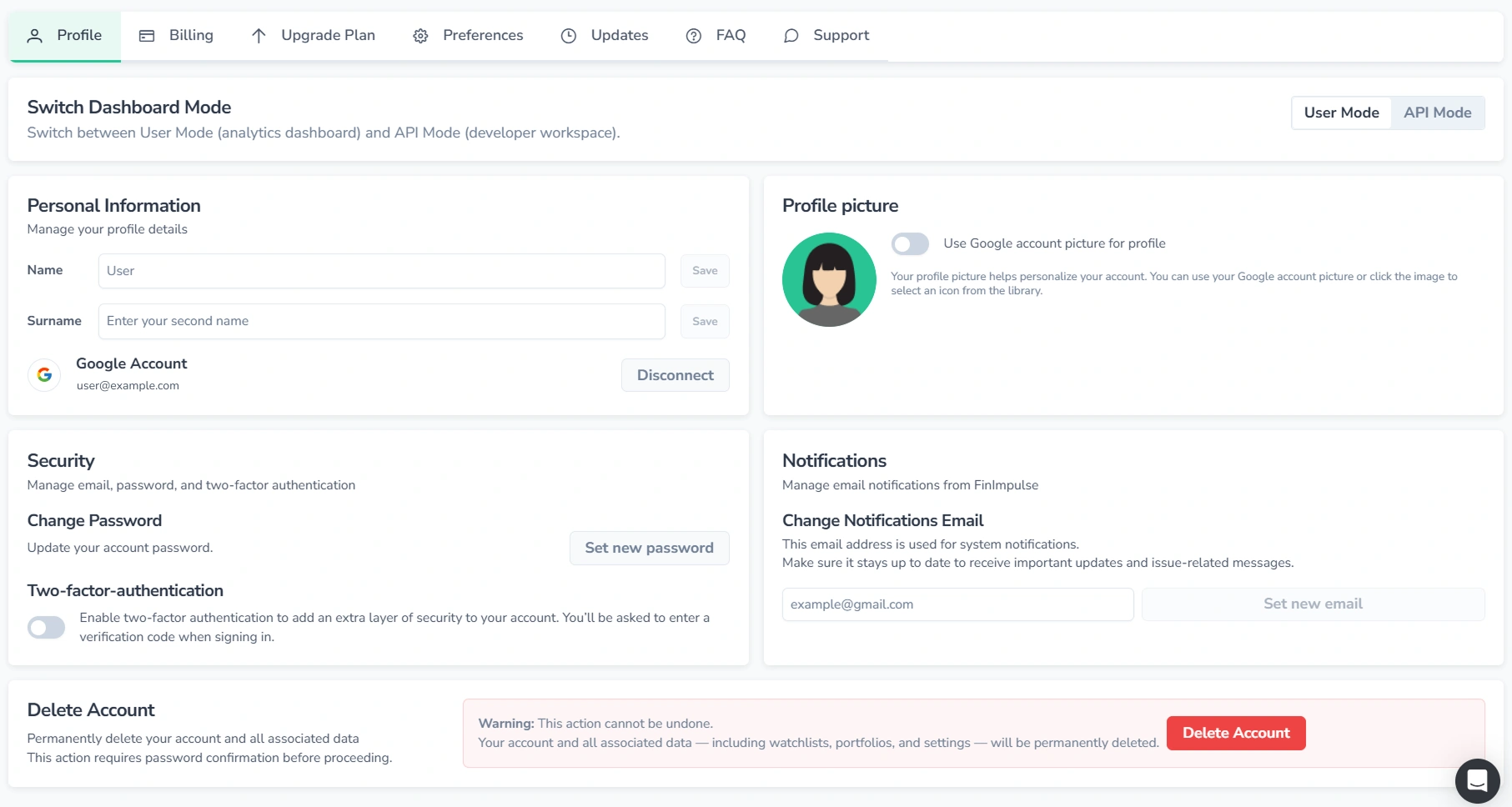
Profile Setup

This section contains all account-related settings and works the same way in both User and API modes.

1. Switch Dashboard Mode

Screenshot of the Profile page in FinImpulse with the "Switch Dashboard Mode" section highlighted in red.

FinImpulse provides two dashboard modes:

  • User Mode — analytics dashboard and investor tools.
  • API Mode — developer workspace for API tokens and usage.

Both modes are part of the same account. Switch between modes from the user menu.

Screenshot of the Profile page in FinImpulse, where the red cursor clicks the profile picture to open the main user menu, with the dashboard mode switcher highlighted in red.

2. Personal Information

Screenshot of the FinImpulse Profile tab with the "Personal Information" block highlighted in red.

This section allows you to manage basic profile details:

  • Display name
  • Profile picture
  • Authentication method

Changes take effect after saving.

2.1. Profile Picture

You can choose how your profile picture is displayed.

Use Google Account Picture

If your account is connected to Google, enable or disable the Google profile image using the toggle, then save changes.

Screenshot of the FinImpulse Profile page, where the "Profile Picture" section is highlighted in red and the red cursor is enabling the "Use Google Account picture" option.

Choose an Avatar

Open your profile picture selector to view available avatars, select one, confirm the selection, and save the changes.

Screenshot of the FinImpulse Profile page, where the "Profile picture" area is highlighted in red and the red cursor opens the profile picture selector.

2.2. Authentication Method

If your account was created using Google Sign-In, the Google account can be disconnected from your profile.

Screenshot of the FinImpulse Profile page with the authentication method area highlighted in red.

After disconnecting:

  • Sign-in continues using the same email address
  • Authentication switches to email and password
  • If no password was previously set, one is sent to your email with setup instructions

Google Sign-In can be reconnected during sign-in if needed.

3. Security

Screenshot of the Profile page in FinImpulse with the "Security" block highlighted in red.

Manage your account security settings.

  • Change your password
  • Enable two-factor authentication (2FA

2FA adds an extra layer of protection, especially for API access.

3.1. Password

To update your password:

  1. Press the Set new password button → The password change dialog opens
  2. Enter the current password
  3. Set and confirm a new password (minimum 8 characters)
  4. Save the changes

If you originally signed up using Google, an initial password was generated automatically and sent to your email. You can replace it with your own at any time.

3.2. Two-Factor Authentication (2FA)

To enable two-factor authentication, turn on the 2FA toggle to open the setup dialog. Then follow the steps below:

  1. Open an authenticator app (Google Authenticator, Authy, etc.)
  2. Scan the QR code or enter the secret key
  3. Store the recovery codes securely — they are required if you lose access to your authenticator app
  4. Confirm setup by entering a 6-digit verification code

Once enabled, signing in requires both your password and a verification code.

4. Notifications

A separate email address can be used for notifications such as:

  • Billing alerts
  • System messages
  • Token recovery

To update the notifications email, enter a valid address and apply the change.

Screenshot of the FinImpulse Profile tab, with the "Notifications" area highlighted in red, the email input box highlighted in green, and the red cursor pressing the "Set new email" button.

Note that the login email remains unchanged and is always the one used during initial signup.

5. Delete Account

Account deletion permanently removes the account and all associated data.

Account deletion is not recommended. If you no longer need the service, cancelling your subscription is usually the better option:

  • Your data remains intact
  • No charges apply

Screenshot of the FinImpulse Profile page with the "Delete Account" area highlighted in red.

If you proceed:

  1. Press Delete Account → The account deletion dialog opens
  2. Confirm the deletion
  3. Enter your password or a 6-digit 2FA code

After deletion, all your data is permanently removed, and the same email address cannot be used to create a new account without contacting support.